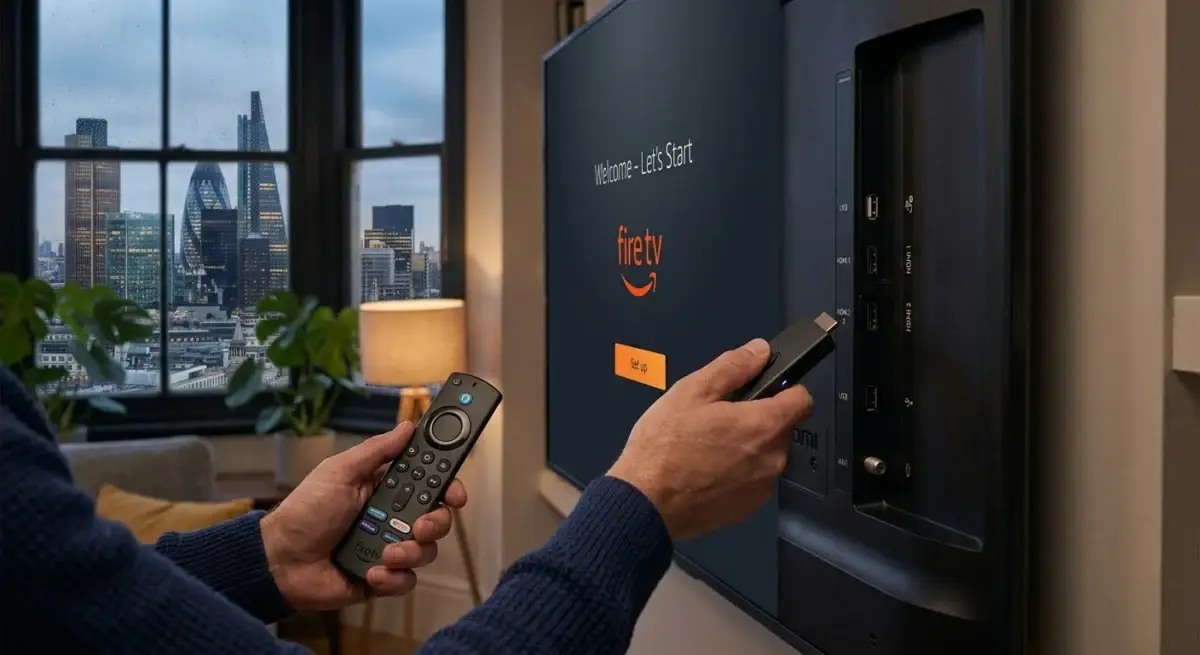
The Amazon Firestick has become the device of choice for a huge number of UK IPTV users, and it is easy to understand why. It is affordable, widely available, simple to set up, and the combination of Amazon’s Fire OS with sideloaded IPTV apps gives you a genuinely excellent streaming experience when everything is configured correctly. If you have just bought a Firestick and want to get IPTV running on it, or if you have been using one for a while and want to make sure your setup is properly optimised, this guide covers everything from the initial configuration through to getting the best possible performance from your subscription.
What You Need Before Using a Firestick With IPTV
Before touching the Firestick itself, make sure you have two things ready. First, your Firestick connected to your television via HDMI and powered through either the USB port on your TV or the included power adapter. Second, your IPTV subscription credentials from your provider. These will arrive as either an M3U playlist URL or Xtream Codes login details consisting of a username, password, and server address. You cannot set up IPTV on your Firestick without these details, so confirm you have received them from your provider before beginning.
If you do not yet have an active UK IPTV subscription, you can start a free 24-hour trial with AtlasStream Live here, no card needed, and use it to follow the steps in this guide.
Want to test it on your own TV first? Try AtlasStream Live free for 24 hours on your Firestick, Smart TV or phone. No payment needed.
Step One: Enable Apps From Unknown Sources
The first thing you need to do with a new Firestick before installing any IPTV app is enable the device to accept apps from outside the Amazon App Store. Amazon restricts this by default, and since the most capable IPTV apps are not available through Amazon’s official store, you need to change one setting before anything else.
From the Firestick home screen, navigate to Settings using the top menu. Scroll right and select My Fire TV. Select Developer Options. Find the option labelled Apps from Unknown Sources and toggle it to On. A warning message will appear asking you to confirm. Select Turn On and you are done with this step. You only need to do this once, and it does not affect any other aspect of how your Firestick functions.
Step Two: Install the Downloader App
Downloader is a free app available directly in the Amazon App Store that allows you to install applications not listed in Amazon’s official catalogue. It is the standard method for getting IPTV apps onto a Firestick. From the Firestick home screen, press the search icon and type Downloader. Select the app from the results, it has an orange icon with a white arrow, and install it. Open it once it has installed and grant any permissions it requests.
Step Three: Choose and Install Your IPTV App
There are several excellent IPTV apps available for Firestick, each with slightly different interfaces and features. The two most popular among UK users are TiviMate and IPTV Smarters Pro, and both are worth knowing about before choosing which to use.
TiviMate is widely considered the best IPTV player available for Firestick. Its interface is clean and intuitive, the electronic programme guide is excellent, and it handles large channel lists smoothly without the slowdown that affects some other players. It is available in both a free version and a premium version, with the premium unlocking features like multiple playlists, recording, and catch-up where your provider supports it. To install TiviMate, open Downloader and enter the official TiviMate download URL, which is available through TiviMate’s official website. Download the file and install it when prompted.
IPTV Smarters Pro is the other widely recommended option, particularly for users who prefer a more traditional television interface. It is available directly through the Amazon App Store on Firestick, which means you can find it by searching the store directly without needing Downloader. It supports both M3U playlists and Xtream Codes and handles the full range of UK IPTV subscription types without issue.
Step Four: Add Your IPTV Subscription
Once your chosen app is installed and open, you will be prompted to add a playlist or service. The process is slightly different depending on whether you are using TiviMate or IPTV Smarters Pro, but the information you need is the same in both cases.
In TiviMate, select Add Playlist from the setup screen. Choose between M3U Playlist and Xtream Codes depending on what your provider sent you. If using M3U, paste the complete URL into the field provided. If using Xtream Codes, enter the server URL, username, and password into the corresponding fields. Give the playlist a name for your own reference, then select Add. TiviMate will begin loading your channel list, which takes between thirty seconds and two minutes depending on the size of your provider’s channel library.
In IPTV Smarters Pro, select Add User from the home screen and then choose the appropriate option for your credentials. The same information applies: M3U URL goes in the M3U field, and Xtream Codes details go into the username, password, and server fields. Once entered, select Add User and the app will connect to your subscription and load your channels.
Step Five: Set Up Your Electronic Programme Guide
A good EPG makes a significant difference to the daily experience of using IPTV. Rather than opening channels at random to see what is on, a properly configured EPG shows you the full broadcast schedule across your channel list, making it easy to find what you want to watch and plan what is coming up.
In most cases, EPG data loads automatically when your provider includes it with the subscription, which most reputable UK providers do. If guide data does not appear after your channel list has loaded, check whether your provider supplies a separate XMLTV URL specifically for the EPG. This is sometimes provided alongside your main credentials and needs to be entered separately in the app’s settings under EPG source.
Keeping Your Firestick Running Smoothly
A Firestick with IPTV works best when it has room to breathe. Over time, cached data builds up and storage fills, which can make menus slow and streams less stable. Every few weeks, go to Settings, Applications, Manage Installed Applications, choose your IPTV app and clear the cache, not the data. Uninstall apps you no longer use. Restart the Firestick from the settings menu once a week, and plug it into the mains adapter rather than a TV USB port, as some TV ports do not supply enough power. If the stick feels hot, use the HDMI extender so it sits away from the back of the TV.
Step Six: Organise Your Channel List
With potentially thousands of channels available through your UK IPTV subscription, organising your most-watched channels into a favourites list makes daily use considerably more convenient. Both TiviMate and IPTV Smarters Pro allow you to mark channels as favourites and create custom groups. Setting up a favourites list for the channels you watch most regularly, your key sports channels, news channels, and entertainment channels, means you can find what you want immediately rather than navigating through the full catalogue every time.
Optimising Your Firestick With IPTV for Best Performance
A few additional steps make a meaningful difference to how smoothly your Firestick handles IPTV, particularly during live sports when server demand is highest and stream quality needs to be at its most consistent.
Connecting your Firestick via ethernet rather than WiFi is one of the most effective improvements you can make. Amazon sells an ethernet adapter specifically for Firestick devices that plugs into the micro USB port and allows a direct wired connection to your router. A wired connection eliminates the wireless interference and signal fluctuations that can cause buffering on WiFi, which matters particularly during high bitrate live sports streams where consistency is more important than peak speed.
If WiFi is unavoidable, make sure your Firestick is connecting to the 5GHz band rather than 2.4GHz. The 5GHz band offers faster speeds and significantly less interference from neighbouring networks, which is particularly relevant in flats and urban areas where multiple WiFi networks compete for the same frequencies. You can check and change the WiFi band your Firestick is using in the network settings.
Clearing the cache of your IPTV app periodically also helps maintain performance. Over time, cached data builds up in any streaming app and can slow down loading times and cause occasional instability. In your Firestick settings, go to Applications, then Manage Installed Applications, find your IPTV app, and select Clear Cache. Do this every few weeks as part of routine maintenance rather than waiting until performance has noticeably degraded.
Common Issues and How to Fix Them
Buffering during live sports is the most common complaint from UK Firestick IPTV users, and the cause is almost always either your WiFi connection or your provider’s server capacity during peak demand. Test the same channel at a quiet time of day to determine which one is responsible. If streaming works smoothly at 11am but buffers on Saturday afternoon, the issue is server side. If buffering happens regardless of time, check your connection speed directly on the Firestick through the network settings.
If an app crashes on launch, clear its cache through the Firestick application manager as described above. If clearing the cache does not resolve it, uninstall and reinstall the app fresh. Most launch stability issues are resolved by one of these two steps without needing to re-enter your subscription credentials, since TiviMate and IPTV Smarters Pro both save your playlist settings independently of the app installation.
If your channel list loads but specific channels show a black screen or error message, these channels may be temporarily offline on your provider’s end. Try the same channel on another device using the same credentials to confirm whether the issue is device specific or service side before spending time troubleshooting your Firestick setup.
Why Your Provider Choice Matters as Much as Your Setup
A perfectly configured Firestick setup is only ever as good as the IPTV service connected to it. The most common source of ongoing frustration for UK Firestick IPTV users is not the device or the app but the provider’s server infrastructure during peak demand. Premier League weekend fixtures and Champions League midweek evenings create simultaneous viewership peaks that expose the difference between a well-resourced provider and one that is running its infrastructure close to its limits.
You can test AtlasStream Live on your Firestick before committing to anything: the free 24-hour trial needs no card, and it is best used during a live match. If anything in the setup process needs clarifying, ask on WhatsApp. Try AtlasStream Live free here and see how it holds up on your own connection.
The Bottom Line
Setting up IPTV on a Firestick in the UK is a straightforward process that takes around fifteen minutes from start to finish when you know what you are doing. Enable unknown sources, install Downloader, get your IPTV app, add your credentials, configure the EPG, and organise your favourites. The optional optimisation steps, ethernet connection, 5GHz WiFi, and regular cache clearing, take a few extra minutes but make a noticeable difference to daily performance. And the most important variable of all, choosing a provider whose infrastructure holds up during the moments that matter most for UK viewers, is the one that determines whether your well-configured Firestick setup actually delivers the experience you were hoping for when you bought it.
Which Firestick Is Best for Firestick With IPTV?
Not every Fire TV device handles IPTV equally. Older and entry-level models work, but newer sticks with more memory switch channels faster and cope better with large playlists and programme guides.
| Model type | Best for | Notes |
|---|---|---|
| Entry-level HD stick | A bedroom or second TV | Fine for HD, can feel slow with very large channel lists |
| 4K stick | Most living rooms | Good balance of speed and price, handles 4K streams |
| 4K Max stick | Heavy use and big playlists | More memory and faster Wi-Fi, the smoothest experience |
If you are buying new, a 4K model is the safest choice for using a Firestick with IPTV. You can check current models and specifications on Amazon UK.
Firestick With IPTV: Wi-Fi Tips That Make a Real Difference
Most problems people blame on the stick are actually Wi-Fi problems. The Firestick sits behind the TV, which is one of the worst places for a wireless signal.
- Use the HDMI extender. The short cable in the box moves the stick away from the TV panel and often improves the signal noticeably.
- Choose 5 GHz. If your router offers separate 2.4 GHz and 5 GHz networks, connect the stick to 5 GHz when it is reasonably close to the router.
- Consider an Ethernet adapter. A small wired adapter gives the most stable connection for live sport.
- Restart the router occasionally. A weekly restart clears minor issues that build up over time.
Keeping Your Firestick With IPTV Running Smoothly
A few minutes of maintenance each month keeps the stick responsive. Clear the cache of your IPTV app, remove apps you no longer use, and install system updates when they appear under My Fire TV, About. If the stick ever becomes very slow, a full restart from the settings menu is often enough to bring it back to normal.
Firestick With IPTV: Common Questions
Is it safe to enable apps from unknown sources?
It is safe as long as you only install apps you trust. Turn the setting back off for the Downloader app once your IPTV player is installed if you want extra peace of mind.
Can I use one subscription on two Firesticks?
You can install the app on both, but watching on both at the same time needs a plan with at least two connections.
Why does my Firestick say storage is low?
Cached data and unused apps fill the small internal storage quickly. Clearing app caches and uninstalling apps you do not use usually frees enough space.
Do I need a VPN on my Firestick?
A VPN is not required to set up a Firestick with IPTV. Some people use one for general privacy, but it can also slow your connection, which may cause buffering. If you try one, test with it switched on and off so you can see the difference for yourself.
My remote has stopped working. What now?
Replace the batteries first, then hold the Home button for ten seconds to pair it again. If you are stuck, the free Fire TV app on your phone can act as a remote while you sort it out.
How do I move my setup to a new Firestick?
Install the same IPTV app on the new stick and enter your login details again. Favourites are usually stored per device, so expect to set them up once more. It takes ten minutes and gives you a clean, fast start on the new hardware.
Follow the six steps above, keep the Wi-Fi strong and give the stick a little maintenance each month, and your Firestick with IPTV setup will stay quick and reliable for a long time.
Will a Firestick work on an older TV?
Yes, as long as the TV has a free HDMI port. Older TVs without HDMI cannot use a Firestick directly. The picture will match the resolution your TV supports, so a non-4K TV simply shows HD.