Finding movies and series in an IPTV app is easy once you understand how the on-demand sections are laid out.
IPTV is not only live television. Many services also include an on-demand section with films and series, usually called VOD, short for video on demand. Finding what you want in a large library is easier once you know how your app organises it. This guide explains the basics, which are similar across most IPTV player apps.
Most IPTV player apps split content into live TV, movies and series. Look for tabs or menu entries with those names on the main screen. Movies are usually grouped into categories such as genre or year, and series are grouped by show, then season and episode. What you see depends on what your provider supplies, so two people using the same app on different services can see very different libraries.
Want to test it on your own TV first? Try AtlasStream Live free for 24 hours on your Firestick, Smart TV or phone. No payment needed.
Do not judge a library by a headline number. A large count tells you nothing about whether the titles you want are there, whether they play reliably, or whether they come from properly licensed sources. Be cautious about services that advertise brand-new cinema releases on demand without explaining where the rights come from. Our guide to whether IPTV is safe and legal in the UK explains what to ask.
How Movies and Series in an IPTV App Are Usually Organised
Most players split content into three main areas: live TV, movies and series. Knowing how each is laid out makes finding movies and series in an IPTV app much quicker.
| Section | What you find there | How it is organised |
|---|---|---|
| Live TV | Channels broadcasting now | Categories such as News, Sport, Kids |
| Movies | Individual films | Genres, recently added, sometimes by year |
| Series | TV shows with seasons and episodes | Show, then season, then episode |
Some apps call the movies and series sections VOD, which stands for video on demand. The names vary, but the layout is similar in most popular players.
Finding Something to Watch Quickly
Use genres
Browsing by genre, such as Comedy, Drama, Documentary or Family, is usually faster than scrolling through a long list of every title.
Check recently added
Many apps have a recently added row. It is the quickest way to see new films and episodes.
Search by title
Type part of the title rather than the full name. If nothing appears, try the original title or a shorter word, as spellings in the library can vary.
Use continue watching
Most players remember where you stopped. Look for a continue watching or resume row on the home screen.
Watching a Series Episode by Episode
- Open the series section and choose the show.
- Select the season you want.
- Pick an episode and press play.
- At the end, many apps offer the next episode automatically.
If you prefer not to binge, look for an autoplay setting and turn it off so the next episode does not start by itself.
Saving Favourites for Films and Shows
Many players let you add films and series to a favourites list, just like channels. Use it as a personal watch list: add anything that looks interesting, and come back to it on a quiet evening. Different members of the household can keep separate lists if the app supports profiles, which stops recommendations getting mixed up.
Getting the Best Picture From On-Demand Content
Films and series can usually buffer further ahead than live TV, so they are often smoother. To get the best quality:
- Choose the highest quality version if the app offers SD, HD and 4K options for the same title.
- Give it a few seconds after pressing play; many apps start at lower quality and step up.
- Use a wired connection for 4K films.
- Set the TV picture mode to Movie or Filmmaker mode for more natural colours.
- Turn off heavy motion smoothing to avoid the soap-opera effect on films.
Subtitles and Audio Tracks
During playback, look for a subtitles or audio button on screen, often shown as a speech bubble or a CC icon. From there you can switch subtitles on or off and choose a different language if available. Some titles include several audio tracks, such as an original language and a dubbed version, or an audio description track for viewers with sight loss. If subtitles appear out of sync, some players offer a subtitle delay setting to adjust timing by a fraction of a second.
Fixing Common On-Demand Problems
The film will not start
Go back and try again. If it still fails, try another title. If nothing plays, restart the app and the device. A single broken title is usually a library issue; if every title fails, contact support.
Playback stops halfway through
Check your connection and whether another device started a large download. Pausing for a few seconds lets the buffer refill.
No sound
Try switching the audio track, or change the device audio output from surround to stereo in the settings.
Black screen with sound
Try switching between hardware and software decoding in the player settings.
Continue watching does not remember my place
Some apps only save progress after a certain amount of viewing, or when you exit properly with the back button. Note the time if you need to return to a specific point.
Keeping Children Safe in the On-Demand Library
On-demand libraries often contain content for all ages. Use the parental PIN in your player to lock adult categories, and create a children profile if the app supports it. Combine this with the children profiles in official apps such as BBC iPlayer to keep every part of your TV setup age-appropriate.
On-Demand Features in Popular Players
Different players present on-demand content in slightly different ways. Most support the same core features:
| Feature | What it does |
|---|---|
| Posters and descriptions | Show artwork, a short summary, cast and rating |
| Continue watching | Remembers where you stopped |
| Favourites or watch list | Saves titles to watch later |
| Sort and filter | Orders by name, date added or rating |
| Trailers | Some apps show a short preview |
| Subtitle and audio selection | Choose languages and accessibility tracks |
If the library looks empty or posters are missing, the app may still be loading information. Give it a minute, or look for a refresh option in the settings.
Making Browsing Faster on a TV Remote
- Use voice search if your device remote supports it.
- Connect a phone keyboard through the device companion app for faster typing.
- Use alphabet jump in long lists if your player offers it.
- Hide categories you never watch to shorten menus.
Movies and Series in an IPTV App: Realistic Expectations
On-demand libraries vary between services. Some focus on live channels and offer a smaller film and series section, while others have large libraries. Titles can be added or removed over time as rights change. If a specific film or show matters to you, search for it during your trial rather than assuming it is included. For the widest choice of films and box sets, many households combine their IPTV service with official broadcaster apps such as BBC iPlayer, ITVX and Channel 4, which offer large free libraries of UK programmes.
Planning a Film Night
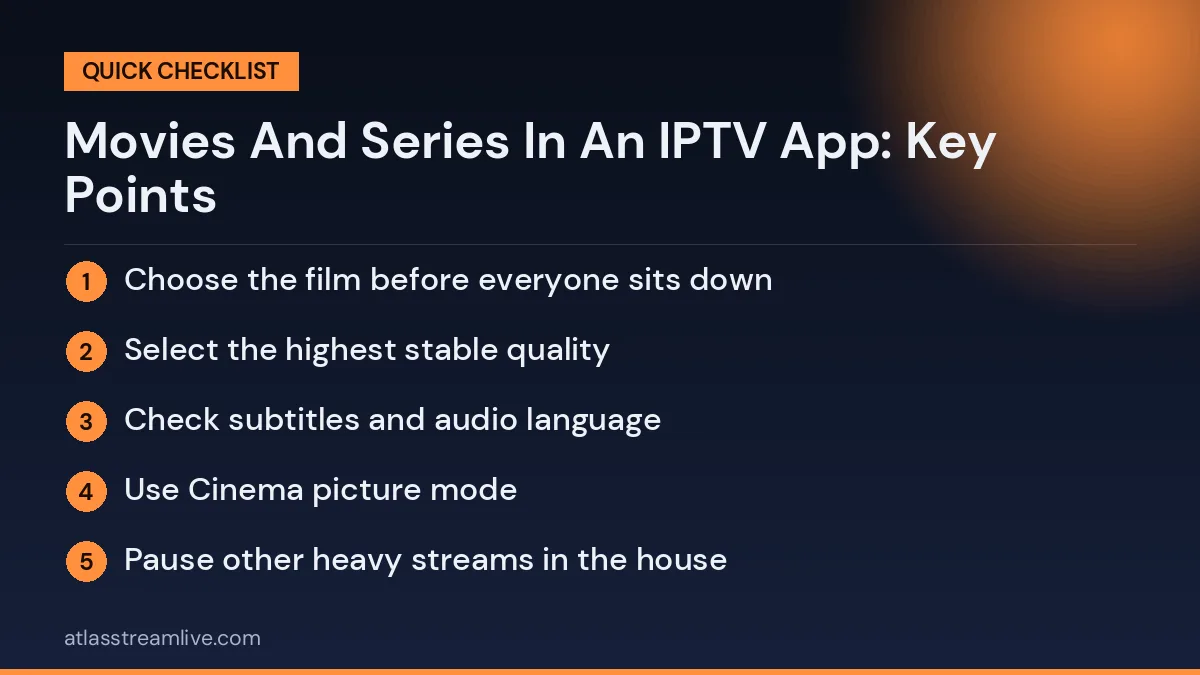
For the best experience, choose the film before everyone sits down, check it plays properly for a minute, and then go back to the start. Dim the lights, switch the TV to Movie mode and turn off motion smoothing. If several people at home are streaming at the same time, ask them to pause big downloads so the film stays sharp from opening titles to final credits.
Speed Needed for Films and Series
On-demand content can buffer ahead, which makes it more forgiving than live sport, but quality still depends on your connection. As a rough guide, around 5 Mbps is enough for SD, around 10 Mbps for HD and 25 Mbps or more for 4K. You can test your real speed on the TV device with a free tool such as Speedtest. If 4K films take a long time to start or drop in quality, try the HD version or connect the device with an Ethernet cable.
Sharing the Library With the Household
When several people use the same app, the on-demand section can quickly become cluttered with everyone’s half-watched films. If your player supports profiles, give each person their own so continue watching and favourites stay personal. If it does not, agree on a simple system: each person keeps their own favourites list name, or uses the official apps with their own profiles for box sets. It sounds minor, but it saves a lot of scrolling and stops someone accidentally spoiling a series another person is halfway through.
Accessibility Features
For viewers with hearing loss, subtitles are essential, so check they are available on the titles you watch most. For viewers with sight loss, audio description tracks narrate what is happening on screen. Not every title includes them, but many popular films and series do. Larger text settings in the player or on the device can also make menus easier to read from the sofa. Take a few minutes to adjust these settings for anyone at home who needs them.
Keeping the App Running Smoothly
Large on-demand libraries mean the app stores a lot of artwork and information on your device. Clearing the app cache every few weeks keeps menus quick, especially on Firesticks and smaller Android boxes with limited storage. Keep the app updated, restart the device once a week, and remove other apps you never use. These simple habits keep browsing fast and playback reliable, so you spend your evening watching rather than waiting.
Discovering Something New
It is easy to scroll for twenty minutes and end up rewatching an old favourite. To discover something new, try picking a genre you rarely watch, sorting by recently added, or choosing a documentary on a topic you know little about. Keep a short note on your phone of films and series friends recommend, and check them in the library when you have a free evening. Building a small watch list in advance turns browsing into a quick, enjoyable choice rather than a long search, and helps you make the most of the on-demand content you already have access to.