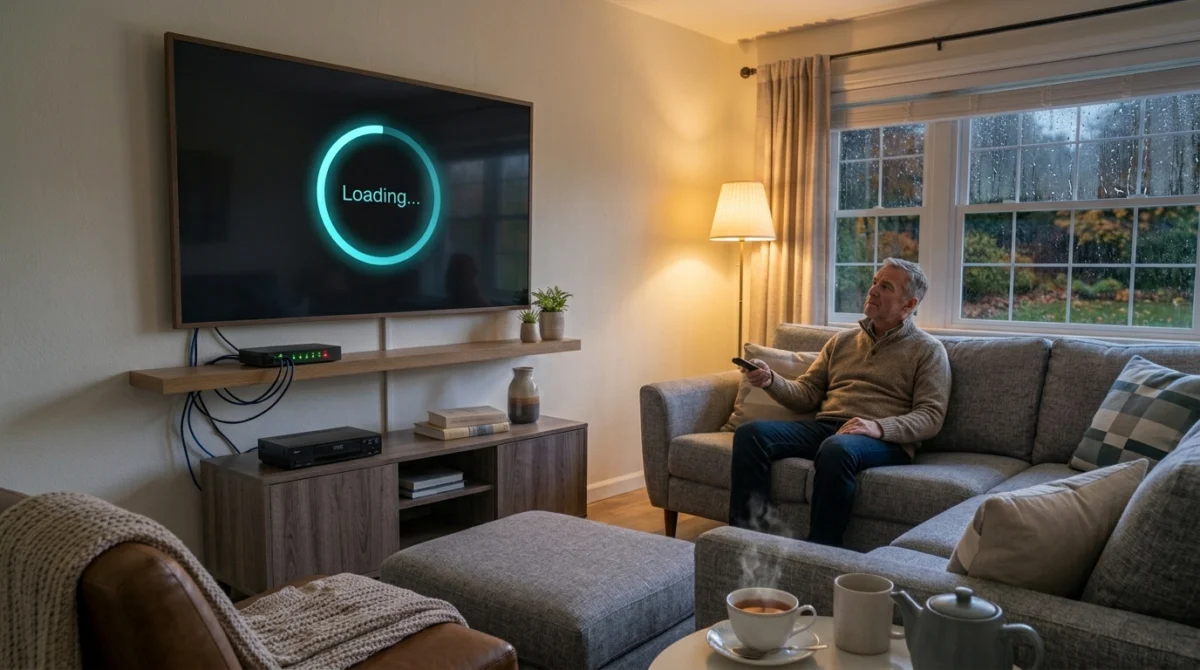
Right, so something has gone wrong. Maybe the picture keeps freezing mid match, maybe you are staring at a spinning wheel that will not go away, or maybe you have opened the app to a flat no signal message and no obvious explanation. This happens to pretty much everyone at some point, and the honest truth is that most IPTV problems fall into one of a small handful of causes. The trick is working out which one you are actually dealing with, rather than guessing and fiddling with settings that were never the issue in the first place.
Want to test it on your own TV first? Try AtlasStream Live free for 24 hours on your Firestick, Smart TV or phone. No payment needed.
IPTV Not Working? Start Here: What Kind of Problem Is It
Before anything else, it helps to be specific about what is actually happening, because buffering, freezing, and no signal are three different problems with somewhat different usual causes, even though they can feel similar in the moment.
Buffering is when the picture keeps pausing and loading, usually with a spinning wheel, and then resumes, sometimes repeatedly. Freezing is when the picture stops moving entirely, often with audio either cutting out too or continuing to play over a static frame. No signal, or a blank screen with an error message, usually means the app cannot establish a connection to the stream at all, rather than struggling to keep up with one that is already playing.
Knowing which of these three you are dealing with narrows things down considerably before you even start troubleshooting properly.
If You Are Getting Buffering
Buffering almost always comes down to data arriving too slowly or too inconsistently to keep your device’s playback buffer topped up. The most obvious cause is your internet connection simply not being fast enough for the quality you are trying to watch, HD streams typically need somewhere around 15 to 25 Mbps, and 4K considerably more, so if your broadband is sitting near those numbers, especially with several devices active in the house, buffering becomes far more likely.
But here is the thing a lot of people miss. Plenty of households have internet speeds comfortably above what is needed and still get constant buffering, which usually points toward something else entirely. Wi-Fi signal quality is a huge factor that gets overlooked constantly, thick walls, distance from the router, and interference from other devices can all degrade your connection enough to cause buffering even when a speed test on your phone looks perfectly fine. If you have never tried plugging your streaming device directly into the router with an ethernet cable, even just to test, do that first, since it is the fastest way to rule Wi-Fi in or out.
Buffering that gets noticeably worse specifically in the evening, roughly between 7pm and 10pm, usually points toward network congestion rather than anything wrong with your setup, either on your own home network or further upstream with your provider. And if buffering is happening specifically with your IPTV service while everything else you stream, Netflix, YouTube, whatever else, runs perfectly fine on the exact same connection, that is a pretty strong sign the issue sits with server capacity on the provider’s end rather than anything you can fix at home.
If the Picture Is Freezing
Freezing tends to point toward a slightly different set of causes than buffering, though there is some overlap. A frozen picture that eventually unfreezes on its own after a few seconds is often related to a brief, temporary drop in connection quality rather than anything persistent, and if it happens occasionally rather than constantly, it is usually not worth worrying about.
Frequent or prolonged freezing, especially paired with audio continuing to play over a static image, more often points toward your device struggling to decode the stream rather than a pure connection problem. This shows up a lot on older streaming boxes and early generation Firestick models trying to handle higher bitrate content, particularly if several other apps are running in the background at the same time. Closing unused apps and giving your device a full restart clears this up more often than people expect.
If freezing happens consistently at the same point, say always a few minutes into watching, rather than randomly, it is worth checking whether your device is overheating, since some budget streaming boxes genuinely do throttle performance after running for a while, particularly in a warm room or tucked away somewhere with poor airflow behind the television.
If You Are Getting No Signal
A no signal message, or any error suggesting the app cannot connect at all, usually means something more fundamental than buffering or freezing. The most common and most overlooked cause here is simply an internet outage or a temporary drop in your home connection, so it is always worth checking whether other devices in the house can get online before assuming anything is wrong with the IPTV app specifically.
If your internet is clearly fine and other things are working, the next most likely cause is an issue with your subscription details, either they have been entered incorrectly at some point, or in rarer cases, a subscription has genuinely expired or needs renewing. Double checking your login details or M3U link against what was originally provided solves this more often than people expect, since a small typo is genuinely common and easy to miss.
Occasionally, a no signal message reflects a problem on the provider’s side entirely, maintenance, a server issue, or a temporary outage, in which case nothing on your end will fix it and the only real option is waiting it out or checking the provider’s official channels for updates.
A Simple Way to Work Out Where the Fault Actually Sits
Rather than randomly trying fixes, it helps to work through a short, logical process. Run a speed test at the exact moment the problem is happening and compare it against what your stream quality actually needs. Try switching to a wired connection briefly to rule Wi-Fi in or out. If you have access to a second device, test the same subscription on it, since a second device working fine while the first one struggles tells you the problem sits with that specific device, not your network or your subscription.
Pay attention to timing too. Problems that only show up during busy evening hours point toward congestion. Problems that happen constantly regardless of time of day point more toward a device, setup, or subscription issue specifically. And problems that affect one IPTV service while everything else streams fine on the same connection and device point toward the provider rather than anything you can directly control.
IPTV Not Working: Fixes Worth Trying, In Rough Order
Start with the basics before anything more involved. Restart your streaming device and your router, since this alone resolves a surprisingly large share of temporary glitches. Check for app updates, since player apps regularly release fixes that quietly resolve playback issues. Clear the app’s cache if your device allows it, since a build up of cached data over time can cause exactly the kind of sluggish, inconsistent performance that looks like a connection problem but is not.
If those basics do not help, move on to checking your actual connection properly, a wired test, a speed test at the problem time, and a check of whether other devices and other streaming services are behaving normally on the same network. If everything there checks out and the problem persists specifically with your IPTV app, double check your subscription details are entered correctly, and if they are, it is worth reaching out to support rather than continuing to troubleshoot something that may simply be a server side issue on their end.
When IPTV Not Working Is Genuinely Not Your Fault
This is worth saying plainly because a lot of people spend hours fiddling with routers and settings that were never the problem. If you have tested on a wired connection, confirmed your speed is comfortably above what your stream needs, tried a second device, and the issue is still happening specifically with one service while everything else runs smoothly, the fault sits with that provider’s infrastructure, not your home setup. No amount of router repositioning or app reinstalling fixes a server that cannot keep up with demand on the other end.
If you are setting up fresh or want to rule out setup mistakes entirely before troubleshooting further, working through our full setup guide from scratch, rather than assuming your original setup was correct, catches small early errors that often go unnoticed until something starts misbehaving later.
Checking Your Device Is Actually Supported Properly
Occasionally, persistent problems come down to running an IPTV app on a device it was never properly optimised for in the first place. If you are using an older or unusual device and keep running into issues nothing else seems to explain, it is worth checking our IPTV app page to confirm your specific device is properly supported, rather than assuming compatibility and troubleshooting around a mismatch that was there from the start.
A Quick Checklist to Run First
- Check your internet. Open a website or another streaming app on the same device, and run a speed test if you can.
- Fully close the IPTV app (do not just go back out of it) and reopen it.
- Restart the device. Unplug TVs and streaming sticks for 30 seconds, because standby is not a full restart.
- Restart the router if other devices are slow too, and allow a couple of minutes for it to reconnect.
- Test another supported device. If a phone works but the TV does not, the issue is probably the TV or its connection.
- Check your access details are valid. Make sure you are not still using expired trial details and that the subscription is active.
The App Will Not Open
- Restart the device and try again.
- Check for an app update in the official store.
- Clear the app cache (on Android TV and Fire TV, go to Settings, then Applications).
- Reinstall from the official store as a last resort, and have your access details ready.
Login Details Are Not Working
Check for typing errors. Usernames and passwords are usually case-sensitive, and a stray space breaks them. Confirm you are using the subscription details rather than old trial details, and that the server address was entered in full. If it still fails, contact support, and do not share the details in a public message.
It Works on One Device but Not Another
This rules out the account and the service in most cases. Compare the two devices: are they on the same network, the same player app and the same app version? Update or reinstall the player on the device that fails, and check its network connection separately.
If it works on a phone but not on a Smart TV, remember that phones often sit closer to the router and have newer Wi-Fi hardware than TVs. Try a wired connection to the TV, update the TV software, and check the player is still available in the TV’s store. Device-specific help is in our guides to IPTV on a Smart TV and Firestick setup.
The Picture Works but There Is No Sound
- Check the TV or soundbar is not muted and the correct output is selected.
- In the player, switch the audio track or audio decoder (software or hardware) if the option exists.
- Try another channel, because a single channel may use a different audio format.
- If you use a soundbar or AV receiver, test with the TV speakers to isolate the issue.
What to Send Support If Every Device Is Affected
If other streaming apps and websites work normally, several devices show the same problem at the same time, and restarting everything has not helped, the issue is more likely on the service side. That is the point to contact support rather than keep changing settings. Include:
- Your device type (for example, a Samsung TV or a Fire TV stick)
- The app or player name
- Whether another device works
- Whether other internet services work
- The approximate time the issue started
- Any error message displayed
Never send your password in a public message. You can message us on WhatsApp and we will tell you how to verify your account safely.
IPTV Not Working on a Specific Device: Quick Fixes
Sometimes IPTV not working is a problem with one type of device rather than the service as a whole. Here are the quickest checks for the devices most UK viewers use.
Firestick and Fire TV
Fire TV sticks have limited storage and memory. If your IPTV is not working on a Firestick, go to Settings, Applications, Manage Installed Applications, open your IPTV app and clear the cache. Also check that the stick itself is up to date under My Fire TV, About. A stick that runs hot behind the TV can slow down too, so an HDMI extender that moves it into open air often helps.
Samsung and LG Smart TVs
Smart TV apps rely on the TV software. If IPTV is not working on a Smart TV, unplug the TV from the wall for a full minute rather than using the remote, then check for a software update in the TV settings. Older Smart TVs sometimes struggle with 4K streams, so try an HD channel to see if the picture becomes stable.
Android TV boxes
Cheap boxes often ship with outdated software. Make sure the box is running a recent Android version, that it has enough free storage, and that no other apps are downloading in the background while you watch.
iPhone, iPad and Android phones
On a phone, IPTV not working is usually a mobile data or battery saver issue. Switch to Wi-Fi, turn off low power mode, and close other apps that are using the connection.
Test Your Connection When IPTV Is Not Working
Before you contact anyone, run a speed test on the same Wi-Fi network as your TV using Speedtest. As a rough guide, HD streaming is comfortable from around 10 Mbps and 4K from around 25 Mbps. Run the test at the time the problem happens, because evening speeds are often much lower than daytime speeds. If your results are well below what you pay for, Ofcom has guidance on what to do when your broadband speed falls short, and your internet provider is the right place to start.
Keep a note of the results. If IPTV is not working at the same time every evening while your speed test looks normal, that pattern is useful information for support and helps find the cause much faster.
Final Thoughts
Buffering, freezing, and no signal are three different problems with their own usual explanations, and working through them methodically, starting with the basics and ruling things out in order, gets you to an answer far faster than randomly changing settings and hoping something sticks. Most of the time the fix is genuinely simple, a restart, a wired connection, a corrected typo in your login details. And when it is not simple, when you have properly ruled your own setup out and the problem persists regardless, that is your answer too, just not the one sitting at home. Check our homepage for further support options if you are still stuck after working through everything here.
Next time your IPTV is not working, come back to this guide, start with the checklist above and work through it in order. Most problems are fixed in the first few steps.