IPTV Subtitles and Audio Tracks: How to Switch Them in Your App
Missing subtitles or the wrong audio language is a common frustration. Here is where to look in most players, and what to try when the options do not appear.
Last updated: 16 October 2026
Where the options usually are
Turning on IPTV subtitles or switching audio tracks is easy once you know where your app hides the options. This guide covers the main players, common problems and simple fixes for sound and sync issues.
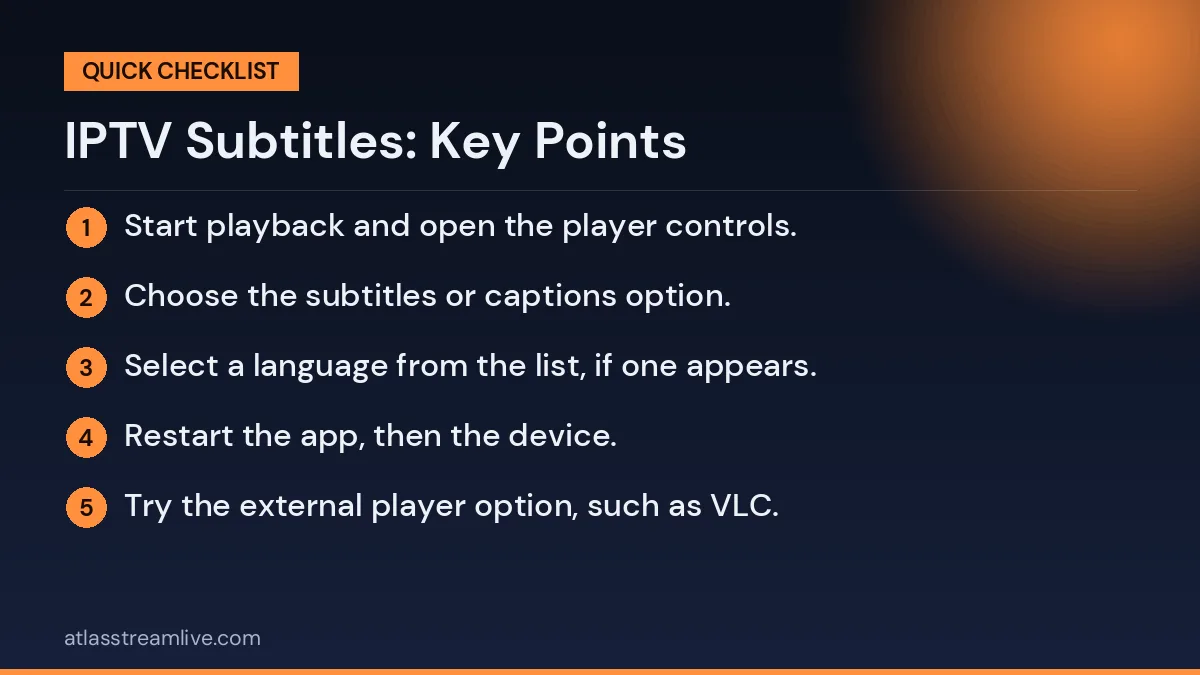
Most IPTV players hide subtitle and audio settings in the player controls. While a channel or film is playing, press the centre button, the menu button or tap the screen to bring up the controls. Look for an icon that looks like a speech bubble for subtitles, and an icon with a speaker or the word audio for sound tracks. The names and icons vary from app to app.
Want to test it on your own TV first? Try AtlasStream Live free for 24 hours on your Firestick, Smart TV or phone. No payment needed.
If nothing appears, the channel or title may not carry subtitles at all.
Setting Defaults So You Do Not Repeat Yourself
Switching IPTV subtitles on every time you change channel quickly becomes annoying. Most players offer default settings that save you the trouble. Look in the app settings for options such as Preferred Subtitle Language, Preferred Audio Language and Show Subtitles by Default. Set English subtitles and English audio as the defaults, then change them only when you need something different. On TiviMate and similar apps, these defaults apply across all channels, while some simpler players remember the choice per channel only.
If several people share the same TV and only some use subtitles, check whether your app supports profiles. A separate profile with subtitles on by default keeps everyone happy without constant switching.
Sports Commentary and Alternative Audio
Some sports feeds include alternative audio, such as stadium sound without commentary or commentary in another language. During football or F1, open the audio menu to see what is available. Stadium-only sound is popular with fans who prefer the atmosphere, while others choose a different commentary team. Not every feed offers this, but it is worth checking during big events.
A Simple Troubleshooting Routine
When IPTV subtitles or audio misbehave, follow this short routine before contacting support:
Check whether the problem happens on one channel or all channels.
Open the player menu and confirm the right subtitle and audio tracks are selected.
Restart the app, then the device.
Try the external player option, such as VLC.
Set device audio output to Stereo or PCM.
Update the app and device software.
Note the channel name, time and device, then contact your provider with these details.
Clear details help support teams spot whether the issue comes from a specific feed or from the device settings, which leads to a faster fix.
Subtitles on live channels depend on what the broadcaster or the stream provides, and on-demand titles differ from title to title. A missing option does not always mean the app is faulty.
How to Turn On IPTV Subtitles in Popular Apps
App
Where to find subtitles
IPTV Smarters Pro
During playback, tap the screen, then the speech-bubble or settings icon
TiviMate
Press OK during playback, then the subtitles icon, or long-press OK
IBO Player
Open the player menu with OK, then choose Subtitle
VLC
Tap the speech-bubble icon in the player controls
GSE Smart IPTV
Tap the screen, then the CC or tracks button
Menus change between versions, so if you cannot find the option, look for a settings gear, a three-dot menu or an icon labelled CC or Tracks while a channel or film is playing.
Why IPTV Subtitles Are Sometimes Missing
IPTV subtitles only appear if they are included in the stream. Many live channels carry subtitles, but not all of them pass through every feed. On-demand films and series more often include several subtitle languages. If you see no subtitle option at all, the stream probably does not contain any. Try another feed of the same channel, or check whether the programme is available on the broadcaster’s own catch-up app, which usually has reliable subtitles.
Common reasons for missing subtitles
The stream does not include a subtitle track
The player does not support that subtitle format (such as DVB or teletext)
Subtitles are set to off by default in the app settings
The app needs updating to read newer formats
Switching Players for Better Subtitle Support
If one app never shows subtitles, try another player. Some apps let you choose between internal and external video players. Selecting VLC or MX Player as the external player often unlocks subtitle and audio options the built-in player hides. This simple change fixes many subtitle problems on Android and Firestick.
Over time, you will learn which channels carry subtitles reliably and which do not. Keep those channels near the top of your favourites, especially if someone in the house relies on subtitles every day. This small habit saves time and avoids frustration during busy evenings.
Switching the audio track
Some titles carry more than one audio track, for example different languages or a commentary version. Open the audio option in the player controls and pick another track. If you only see one, the stream probably carries only one.
Changing Subtitle Size, Colour and Position
Reading small white text on a bright scene is tiring. Most good players let you adjust IPTV subtitles to make them easier to read:
Size: increase the font size for viewing from the sofa.
Background: turn on a dark box behind the text for better contrast.
Colour: yellow text can be easier to read than white for some people.
Position: raise subtitles slightly if they sit too close to the edge of the TV.
On Firestick and Android TV, you can also set system-wide caption styles under Accessibility settings. Some apps follow these settings automatically.
Choosing the Right Audio Track
Films and some sports channels include several audio tracks: different languages, commentary options or audio description. Open the player menu and look for Audio or Tracks. If a channel plays in the wrong language, switching the track usually fixes it. You can often set a preferred audio language in the app settings so it chooses the right one automatically.
Audio description narrates what is happening on screen for blind and partially sighted viewers. RNIB explains how audio description works on UK TV and where to find it.
Subtitles on Different Devices
The steps for IPTV subtitles vary slightly between devices. On an Amazon Firestick, the remote menu button (three lines) often opens playback options, including subtitles and audio. On Android TV and Google TV, pressing OK or the down arrow during playback usually shows a settings icon. On Samsung and LG TVs using a built-in app, look for an options or tools button on the remote. On iPhone and iPad, tap the screen and look for the speech-bubble icon. On Apple TV, swipe down on the remote during playback to show the subtitles and audio menu.
If the app does not show subtitles but the device has its own caption settings, try turning on system captions in the accessibility menu. Some apps follow these settings automatically. Remember that live channels only show subtitles when the broadcaster includes them in the stream.
Quick device guide
Device
How to open subtitles
Firestick
Menu button during playback
Android TV / Google TV
OK or down arrow, then settings
Samsung / LG app
Options or Tools button
iPhone / iPad
Tap screen, speech-bubble icon
Apple TV
Swipe down during playback
Audio Description for Visually Impaired Viewers
Audio description adds a narrated track that describes what is happening on screen, such as actions, facial expressions and scene changes. It is very helpful for blind and partially sighted viewers. Many UK broadcasters provide audio description on a large share of their programmes, especially on BBC, ITV, Channel 4 and Channel 5. On IPTV, it appears as an extra audio track when the broadcaster includes it in the stream.
To use it, open the audio or tracks menu during playback and look for a track labelled AD, Audio Description or Narrative. If you cannot find it, check the broadcaster’s own catch-up app, such as BBC iPlayer, which offers reliable audio description options. You can also turn on the device’s screen reader in accessibility settings to help navigate menus.
Accessibility features to check
Audio description tracks on supported channels
Subtitles with adjustable size and background
Screen reader support on the device
Voice search on the remote
High-contrast menus where available
Choosing a Player With Strong Subtitle Support
If subtitles and audio tracks are important to your household, choose a player that handles them well. Look for apps that let you pick subtitle tracks easily, adjust size and colour, set default languages and shift subtitle timing. VLC, TiviMate and other popular players offer these features. Test a few during a trial to see which works best with your service and devices, and set it as your main app once you find one you like.
When to Contact Support
If subtitles or audio tracks are missing on many channels, or sound problems continue after trying the fixes above, contact your provider. Give clear details: the channel name, time, device, app and what you tried. Screenshots or short phone videos help support see the problem quickly. Clear reports lead to faster answers, and they help the provider spot issues affecting other viewers too. In the meantime, use the broadcaster’s own catch-up app for programmes where subtitles or audio description are essential, as these apps usually offer the most reliable accessibility features.
IPTV Subtitles and Sound Problems
If the picture works but there is no sound, run through these steps:
Check the TV or soundbar is not muted and the right output is selected.
Switch the player’s audio decoder between software and hardware, if the option exists.
Try another channel, because one channel may use a different audio format.
If you use a soundbar or AV receiver, test with the TV speakers to find out where the fault is.
Fixing Audio That Is Out of Sync
When voices do not match lips, the delay usually comes from the TV, soundbar or app processing rather than the stream itself. Try these fixes in order:
Pause the stream for a few seconds, then play again.
Change channel and come back to reset the buffer.
Use the audio delay setting in the player (often called Audio Sync or A/V offset) and adjust in small steps.
Turn off extra TV sound processing such as surround modes or night mode.
If using a soundbar, set its lip-sync or AV sync option.
Switch the app to a different decoder (hardware or software) in its settings.
Restart the streaming device fully by unplugging it for 30 seconds.
If IPTV subtitles appear too early or too late, look for a Subtitle Delay or Subtitle Sync setting. VLC and many other players let you shift subtitles forwards or backwards by fractions of a second.
No Sound at All
Check the TV and soundbar volume and mute settings.
Try a different channel to see if the issue is with one stream.
In the device settings, set audio output to PCM or Stereo instead of Dolby passthrough.
Update the IPTV app and the device firmware.
Try the external player option, such as VLC.
Dolby Digital Plus or AC3 audio can sometimes fail on older TVs or HDMI connections. Switching to stereo output is the quickest fix.
Subtitle Formats Explained Simply
You do not need to be technical to use IPTV subtitles, but knowing the main formats helps explain why some work and others do not:
DVB subtitles: image-based subtitles used by many European broadcasters. Some basic players cannot show them.
Teletext subtitles: the older UK system, sometimes still carried on page 888. Support varies between apps.
Closed captions (CC): common on American channels and supported by most modern players.
SRT and WebVTT: simple text files used mainly with on-demand films and series.
If a channel carries DVB or teletext subtitles and your app does not show them, switching to VLC or TiviMate often solves the problem, because these players support a wider range of formats. Keeping your app updated also adds support for newer formats over time, so check for updates every few weeks, especially after major device software updates.
If the voices do not match the lips, look for an audio delay or sync setting in the player and adjust it a little at a time. Restarting the app can also help. If the problem appears on every channel and every device, contact your provider, because it may be worth checking with them. If it only happens on one device, check the device’s own audio settings and any connected soundbar.
Subtitles for Accessibility and Learning
Subtitles are not only for viewers with hearing loss. Many people turn them on to follow fast dialogue, strong accents or quiet scenes, and they are excellent for learning a new language or helping children with reading. Setting IPTV subtitles as default for certain profiles, if your app supports it, saves time for anyone who always uses them. RNID offers useful information on subtitles and accessible TV for deaf people and those with hearing loss.
Accessibility > Subtitles; Sound > AV Sync Adjustment
iPhone / iPad
Accessibility > Subtitles & Captioning
Try it on your own setup
Every combination of app, TV and sound system behaves a little differently, so test yours. AtlasStream Live offers a free 24-hour trial with no card needed, which is enough time to check subtitles, audio and sync on your own equipment. Ask on WhatsApp if you need help. Start here: free 24-hour trial.
IPTV Subtitles: Quick FAQs
Why do subtitles work on some channels but not others?
Each channel feed is different. Some include subtitle data and some do not. Try another feed of the same channel if one is available.
Can I add my own subtitle files?
For on-demand films, some players such as VLC allow you to load an SRT file. This is not possible for live TV.
How do I make subtitles bigger?
Use the subtitle settings in your app, or the captions settings in your device’s accessibility menu.
Why is the sound in a different language?
The stream may have several audio tracks. Open the player menu and choose your preferred language under Audio or Tracks.
Do subtitles use more data?
No. Subtitle data is tiny compared with video, so turning them on makes no real difference to bandwidth.
Summary
IPTV subtitles and audio tracks are controlled from the player menu during playback. If options are missing, the stream may not include them, or another player may handle them better. Adjust size and colour for comfort, set sensible defaults, and use audio sync settings when sound drifts. With these simple steps, every programme becomes easier to follow for everyone in your home.