Choosing between Wi-Fi or Ethernet for IPTV is one of the simplest decisions that makes the biggest difference to picture stability.
If your TV or streaming device has an Ethernet port and you can run a cable from the router, use it. A cable gives a steadier connection than Wi-Fi because it is not affected by walls, neighbours’ networks, microwaves or other devices in the house. For live sport, where a few seconds of stalling is very noticeable, that stability matters more than raw speed.
Want to test it on your own TV first? Try AtlasStream Live free for 24 hours on your Firestick, Smart TV or phone. No payment needed.
- Move the router. Higher up and in an open spot is better than low down inside a cupboard.
- Use the 5GHz network for the TV or streaming device if the router offers it. It is faster over short distances, though it does not go through walls as well as 2.4GHz.
- Move the streaming device. A Firestick behind the TV can suffer from interference, and a short HDMI extender cable often helps.
- Restart the router and the streaming device, then test again in the evening.
- Pause big downloads and cloud backups on other devices while you watch.
Wi-Fi or Ethernet for IPTV: Side-by-Side Comparison
The question of Wi-Fi or Ethernet for IPTV comes down to stability. This table shows how the main connection options compare in a typical UK home.
| Connection | Stability | Typical speed | Best for |
|---|---|---|---|
| Ethernet cable | Excellent | Full line speed | Live sport, 4K, main TV |
| Powerline adapters | Good to very good | Depends on home wiring | Rooms far from the router |
| Mesh Wi-Fi | Good | High in most rooms | Larger homes |
| 5 GHz Wi-Fi | Good near the router | High at short range | TV in the same or next room |
| 2.4 GHz Wi-Fi | Fair | Lower, more interference | Devices far from the router |
Why Ethernet Is So Reliable
Wi-Fi signals travel through the air, so they weaken through walls and suffer interference from neighbouring networks, microwaves, baby monitors and even people moving around the room. A cable carries the signal directly, without any of these problems. That is why live sport, where the player can only buffer a few seconds ahead, benefits so much from Ethernet. Even a modest wired connection is often smoother than fast but unstable Wi-Fi.
Running a Cable Neatly
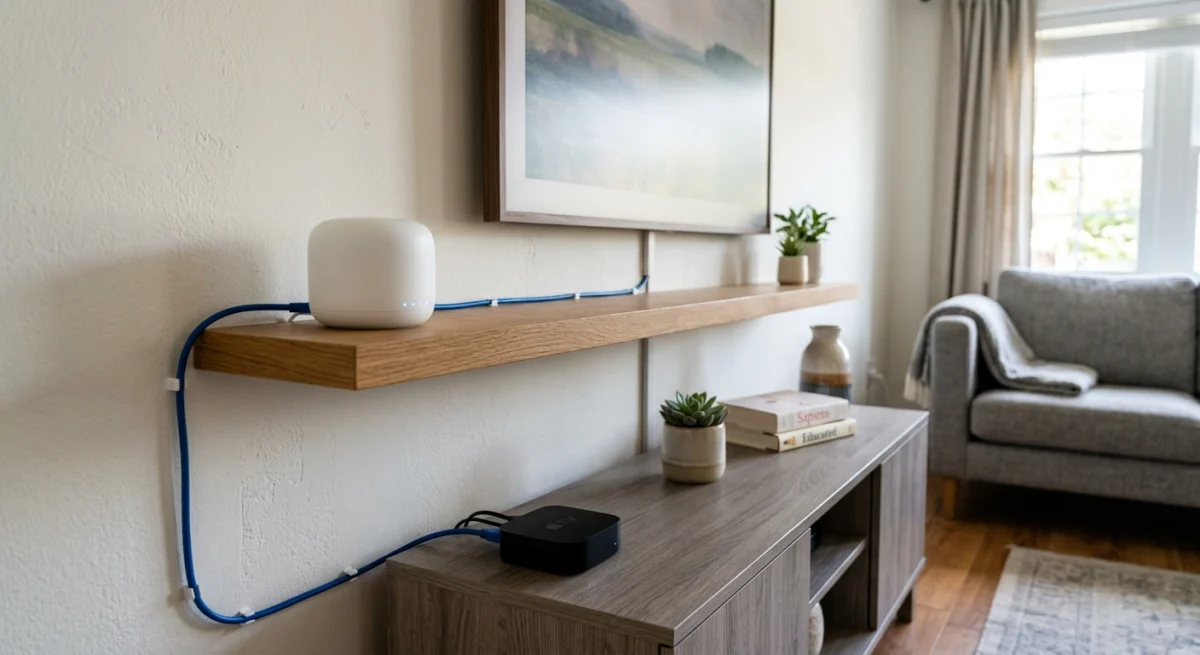
- Flat Ethernet cables slip under carpets and along skirting boards easily.
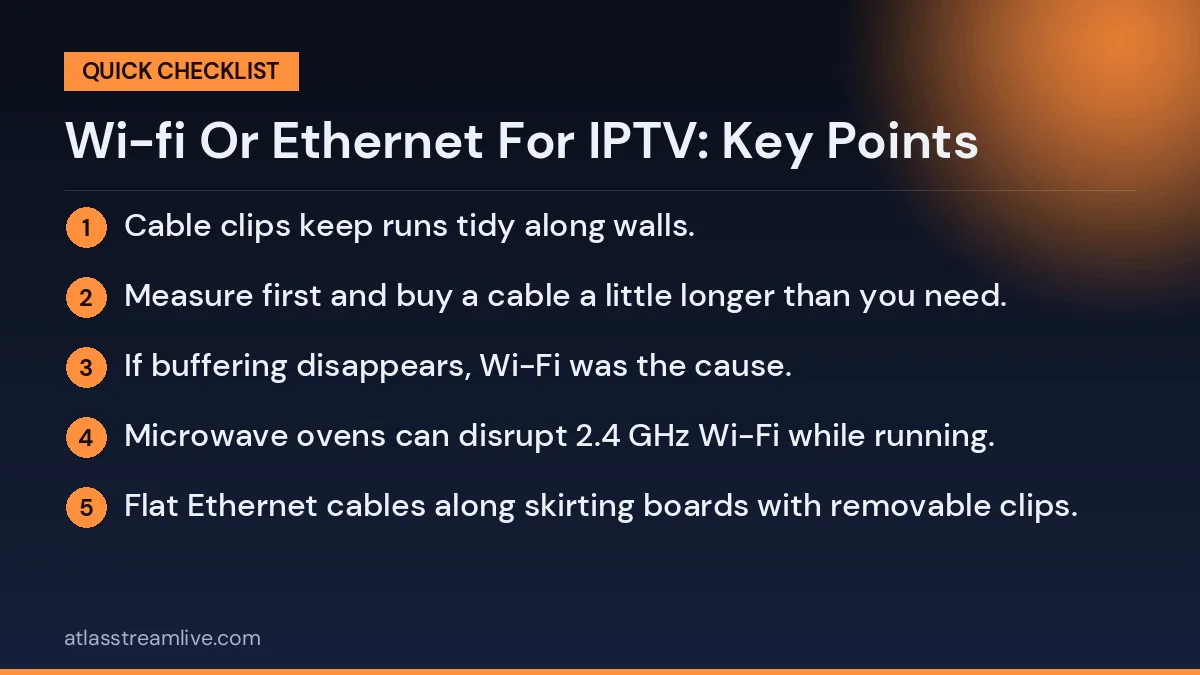
- Cable clips keep runs tidy along walls.
- Cat 6 cable is inexpensive and more than enough for any home streaming.
- Adapters add an Ethernet port to streaming sticks that do not have one.
- Measure first and buy a cable a little longer than you need.
Powerline Adapters Explained
If a cable run is impractical, powerline adapters send your internet connection through the home electrical wiring. Plug one adapter into a wall socket near the router and connect it by cable, then plug the second near the TV and connect it to your streaming device. Results depend on your wiring, so performance varies between homes. Plug them directly into wall sockets rather than extension leads for the best results.
Getting More From Your Wi-Fi
Router placement
Place the router high, central and in the open. Avoid cupboards, the floor, behind the TV, and next to mirrors, fish tanks or metal objects.
Choose the right band
Connect your TV device to 5 GHz if it is in the same or next room as the router. Use 2.4 GHz only if 5 GHz is too weak at that distance.
Change the channel
In busy areas, many neighbouring routers use the same Wi-Fi channel. Most routers choose automatically, but restarting the router can move it to a clearer channel.
Upgrade old equipment
Routers more than a few years old may not support newer Wi-Fi standards. Many UK broadband providers upgrade routers for existing customers on request.
Add mesh
Mesh systems use several units placed around the home to create one strong network. They are ideal for larger houses, homes with thick walls and loft conversions.
How to Tell Whether Wi-Fi Is the Problem
- Run a speed test on the TV device and on a phone standing next to the router.
- If the phone near the router is much faster, Wi-Fi is losing speed on the way to the TV.
- Temporarily connect the TV device by cable, even with a long cable across the floor.
- If buffering disappears, Wi-Fi was the cause.
A free tool such as Speedtest makes this easy. As a guide, around 10 Mbps is comfortable for HD and 25 Mbps or more for 4K at the TV itself.
Devices Without an Ethernet Port
Many streaming sticks have no Ethernet port. Inexpensive USB or micro-USB Ethernet adapters are available for popular sticks and add a wired connection easily. Check that the adapter is compatible with your exact device model before buying. Most Smart TVs, Android TV boxes, MAG boxes and many Apple TV models have a built-in Ethernet port.
When Ethernet Is Not Possible
Some homes cannot run cables, especially rented flats. In that case, combine several Wi-Fi improvements: a mesh point near the TV, the 5 GHz band, an updated router and fewer heavy downloads during viewing. Powerline adapters are also worth trying, as they need no visible cables between rooms.
Wi-Fi Standards in Plain English
| Standard | Also known as | What it means for streaming |
|---|---|---|
| 802.11n | Wi-Fi 4 | Older, fine for HD close to the router |
| 802.11ac | Wi-Fi 5 | Common, good for HD and 4K on 5 GHz |
| 802.11ax | Wi-Fi 6 and 6E | Better with many devices, more stable in busy homes |
| 802.11be | Wi-Fi 7 | Newest, very fast, needs compatible devices |
Both the router and the device must support a standard to benefit from it. A Wi-Fi 6 router with an older stick only gives you the older standard on that stick.
Interference You Might Not Expect
- Microwave ovens can disrupt 2.4 GHz Wi-Fi while running.
- Baby monitors and cordless phones may share the same frequencies.
- Neighbouring networks in flats and terraced streets crowd the airwaves.
- Thick stone or brick walls, common in older UK homes, block signals.
- Underfloor heating and foil-backed insulation can weaken Wi-Fi between floors.
Ethernet for Every Device?
You do not need to cable everything. Phones, tablets and laptops work well on Wi-Fi. Focus Ethernet on the devices that matter most: the main TV streaming device, a games console and perhaps a desktop computer. Taking these heavy users off Wi-Fi also frees up wireless capacity for everything else in the house.
A Room-by-Room Plan
Living room
The main TV usually matters most. Use Ethernet if the router is in the same room or nearby, or powerline if it is further away.
Bedrooms
Bedrooms upstairs often have weak Wi-Fi. A mesh point on the landing or in the room usually fixes this.
Kitchen
Phones and tablets in the kitchen are fine on Wi-Fi, but keep the router away from the microwave.
Home office
A wired connection for a work computer frees Wi-Fi for TVs in the evening.
Garden room or outbuilding
Outdoor mesh units or a buried outdoor-rated cable can bring a strong connection to a garden office or summer house.
Your Broadband Provider Can Help
If Wi-Fi is weak throughout your home, contact your broadband provider. Many offer a free or discounted router upgrade, mesh boosters or a Wi-Fi guarantee. Ofcom also publishes practical advice on improving home broadband and Wi-Fi. Keep a note of speed tests in different rooms; clear evidence makes it easier to get help.
Security on Your Home Network
Whatever connection you use, keep your network secure. Use a strong Wi-Fi password, keep router firmware updated, change the default router admin password and avoid sharing your main Wi-Fi password with guests if your router offers a separate guest network. A secure network protects every device in your home, including your streaming devices.
Renting? Options Without Drilling
Tenants often cannot drill holes or run cables through walls. Fortunately, several options need no permanent changes:
- Flat Ethernet cables along skirting boards with removable clips.
- Powerline adapters that simply plug into sockets.
- Mesh Wi-Fi units that sit on a shelf.
- Moving the router using a longer phone or fibre extension cable, if your provider allows it.
All of these can be removed when you move out, leaving no damage behind.
Testing Before and After
Whatever change you make, test before and after so you know it worked. Run a speed test on the TV device at the same time of evening, watch the same live channel for 15 minutes, and note any buffering. Comparing results takes the guesswork out of improving your setup and helps you avoid spending money on changes that make no difference.
Planning for Big Events
Before a major match or tournament, temporarily connecting the TV device by cable, even with a long cable across the room for the day, can make a huge difference. It is a quick, low-cost way to protect the most important viewing moments of the year while you plan a more permanent solution.
Common Mistakes
- Hiding the router in a cupboard or behind the TV.
- Using cheap extenders that halve speed.
- Testing speed on a phone next to the router instead of at the TV.
- Leaving the TV device on 2.4 GHz when 5 GHz is available.
- Assuming faster broadband will fix weak Wi-Fi.
How Many Devices Is Too Many?
Modern homes often have twenty or more connected devices: phones, tablets, laptops, smart speakers, doorbells, cameras, thermostats and TVs. Each one uses a little Wi-Fi capacity, and some use a lot. Older routers can struggle to juggle them all, which shows up as buffering on the TV in the evening when everything is active at once. Moving the busiest devices, such as the main TV and a games console, onto Ethernet takes pressure off the wireless network. Upgrading to a newer router designed for many devices also helps. If you have lots of smart home gadgets, check whether your router can put them on a separate network so they do not compete with your TV.