
Choosing the best IPTV player on Firestick makes a bigger difference to everyday viewing than most people expect.
Two things decide how IPTV feels on a Firestick: the service that supplies the channels, and the player app that displays them. A good service in a clumsy player is frustrating to use, and a good player cannot fix a weak service. This guide is about the second half of that equation, so you can choose a player that suits how you watch and get it running without fuss.

Want to test it on your own TV first? Try AtlasStream Live free for 24 hours on your Firestick, Smart TV or phone. No payment needed.
What an IPTV Player Actually Does
An IPTV player is the app on your Firestick that turns a provider’s details into something you can browse. You enter the information your provider gives you, and the player loads the channel list, the programme guide and any on-demand library, then lets you search, sort and save favourites. The player does not supply any content itself. Everything it shows comes from the provider you connect it to.
What You Will Be Asked to Enter
Most players accept one or more of three things. An M3U playlist link is a web address that holds the channel list. Xtream Codes login details are a username, a password and a server address. An EPG, usually in XMLTV format, is the programme guide data, which sometimes comes as its own separate link. Your provider tells you which of these to use, and the player simply needs them entered exactly as given.
What to Look For in the Best IPTV Player on Firestick
Start with the programme guide, because it is the part you will use most. A clear, quick guide makes a large channel list far easier to live with. Then check how the player copes with a big list, since slow searching or laggy scrolling gets old quickly. Look for favourites and custom groups so you can build a short list of the channels you actually watch, and for support for more than one playlist if you want to use several sources.
Also check how the app is installed and what it costs. Some players are available straight from the Amazon Appstore, while others are installed through a downloader app. Some are free, some are free with a paid upgrade, and some charge a subscription for extra features. Finally, look at how often the app is updated and what recent reviews say, because a player that stops being maintained will eventually stop working well.
Players UK Firestick Owners Commonly Use
IPTV Smarters Pro is a popular choice for people who want a traditional television-style layout. It supports both M3U and Xtream Codes logins and can be found in the Amazon Appstore, so there is no need to use a downloader.
TiviMate is widely liked for its clean layout and programme guide, and it copes well with long channel lists. It has a free version and a paid premium version, with the premium unlocking features such as multiple playlists, recording and catch-up where your provider supports them.
Other players such as XCIPTV and Flix IPTV are also used by Firestick owners. Features and pricing change over time, so check the app’s own official page and recent reviews before you choose one.
If you are unsure which to try first, install two and use each for a few days. They all accept the same details, so switching costs you nothing but a few minutes.
Getting Set Up
The basic steps are the same for any player. Allow your Firestick to install apps from outside the official store if the player needs that, install the app, open it, choose the option to add a playlist or user, and enter the details your provider gave you. Give it a minute or two to load the channel list, then set up your favourites. Our Firestick with IPTV setup guide covers every step in detail, including the settings worth changing for smoother playback.
Settings That Make Any Player Better
Whichever app you choose as the best IPTV player on Firestick, a few settings improve the experience. Turn on hardware decoding for smoother playback, set the buffer size to medium or large if streams stutter, and enable automatic EPG updates at a quiet time such as early morning. Create favourites so you do not scroll through thousands of channels, and hide categories you never use. If the player supports an external video player, try VLC or MX Player for channels that misbehave. Finally, back up your settings if the app allows it, so a reinstall does not mean starting again from scratch.
Install From Official Sources Only
A player installed from outside the official store skips the security checks that the Amazon Appstore runs. If you do install one this way, use the developer’s own official website rather than a link from a forum, a social media post or a message from a stranger. Be wary of any version of a well-known player that is offered as a free modified download.
Tips for Smoother Playback With Your Firestick IPTV Player
Use an ethernet adapter where you can, or the 5GHz Wi-Fi band if not. Clear the app’s cache every few weeks, keep the player and your Firestick software up to date, and close other apps before you start watching. If the picture keeps stopping, try lowering the resolution in the player’s settings. If problems continue, our guide to what to do when IPTV is not working helps you work out whether the cause is your connection, your device or the service.
Is It Legal?
The player is only software, and using one is legal. Whether what you watch through it is legal depends on whether the service has the rights to the content. Our guide to whether IPTV is safe and legal in the UK explains what to look for.
Try It Before You Commit
The easiest way to find out how a player and a service work together is to try them on your own Firestick. You can try AtlasStream Live free for 24 hours, no card needed, and test it with the player you prefer before deciding whether to subscribe.
Comparing the Best IPTV Player on Firestick: Feature by Feature
There is no single best IPTV player on Firestick for everyone. The right choice depends on how you watch, how big your playlist is and how much time you want to spend on setup. This table compares the features that matter most in daily use.
| Feature | Why it matters | What to look for |
|---|---|---|
| Login type | Decides how you add your subscription | Support for both Xtream Codes login and M3U playlists |
| Programme guide | Shows what is on now and next | Fast EPG loading and a clear grid view |
| Favourites | Saves scrolling through thousands of channels | Custom groups and easy reordering |
| Catch up | Lets you watch programmes you missed | Clear catch-up icons and simple playback |
| Buffer control | Helps on weaker connections | Adjustable buffer size |
| Parental PIN | Keeps children on suitable channels | PIN lock on categories |
| Updates | Fixes bugs and keeps compatibility | Regular updates from an active developer |
Free vs Paid IPTV Players
Many players are free with optional paid upgrades. The free versions are often perfectly usable for one TV, while paid versions usually add features such as several playlists, recording, multi-view or removal of adverts. Before paying, use the free version for a week. If it does everything you need, there is no reason to upgrade. If you find yourself wishing for one specific feature, check that the premium version actually includes it.
Be wary of apps that ask for payment before you can even test them, or that are only available as files from unknown websites. A well-known player in the official Amazon Appstore, or one installed through a trusted method, is a safer choice for your device and your data.
How to Install the Best IPTV Player on Firestick Safely
- Update the Firestick under Settings, My Fire TV, About, Check for Updates.
- Search the Amazon Appstore first. Many popular players are listed there and update automatically.
- If an app is not in the store, only use the official download page provided by the developer, and switch the install from unknown sources setting back off afterwards.
- Open the player and add your details exactly as they appear in your welcome email.
- Let the channels and guide load fully before you start browsing, which can take a minute the first time.
Amazon explains how app permissions and installs work in its Fire TV help pages, which are worth a read if you are new to the device.
Getting the Most From Your Player
Organise favourites on day one
Spend ten minutes adding the channels you watch most to a favourites group. It makes every evening faster and is the single biggest improvement to daily use.
Refresh the guide regularly
If listings look wrong or empty, use the refresh or reload EPG option in the settings. Most players update the guide automatically, but a manual refresh fixes many display problems.
Match the display resolution
Set the Firestick display to match your TV. Running a 4K stick at 1080p on a 4K TV, or the other way round, can cause flickering or a soft picture.
Clear the cache
Players store guide data and images on the Firestick. Clearing the app cache every few weeks keeps the stick responsive, especially on older models with limited storage.
When to Switch to a Different Player
If your current app crashes often, takes a long time to load the guide, or has not been updated in many months, it may be time to try another one. Your login details work in any compatible player, so switching is simply a case of installing a new app and entering the same details. Keep the old one installed for a few days until you are sure the new player suits you.
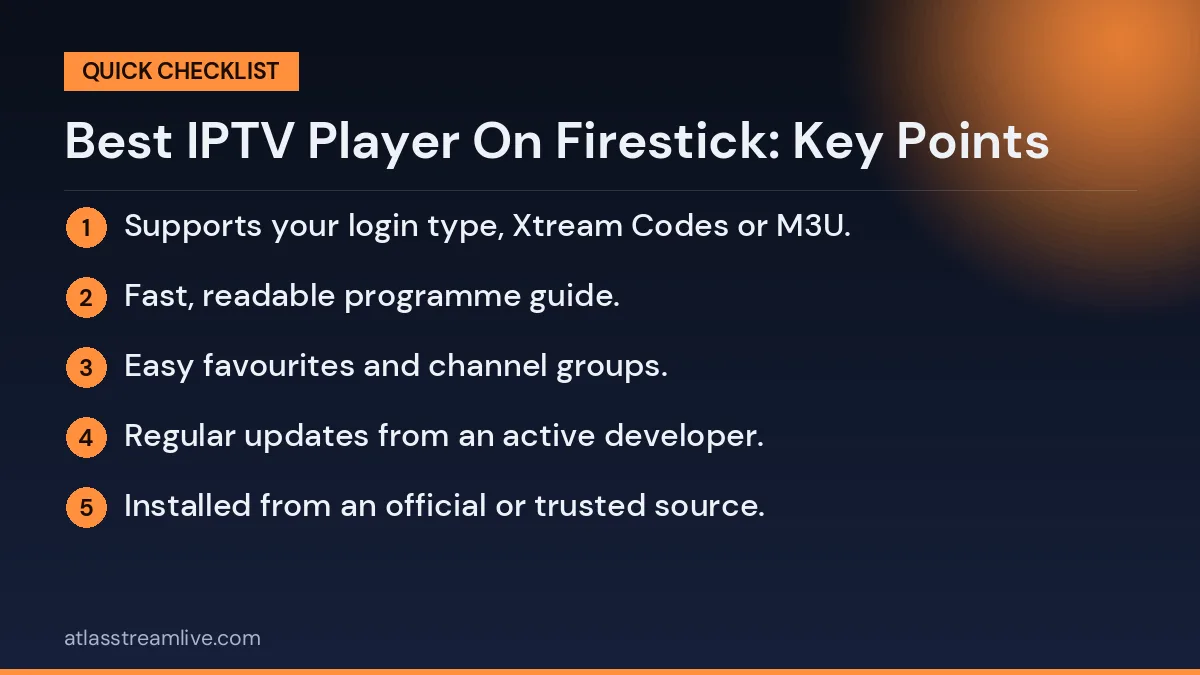
Best IPTV Player on Firestick: Quick Checklist
- Supports your login type, Xtream Codes or M3U.
- Fast, readable programme guide.
- Easy favourites and channel groups.
- Regular updates from an active developer.
- Installed from an official or trusted source.
- Runs smoothly on your specific Firestick model.
Choose with these points in mind and the best IPTV player on Firestick for your home will be the one that feels quick, stays stable and gets out of the way so you can simply watch.
Which Firestick Model Suits Which Player?
Player apps behave differently depending on the hardware underneath. A feature-rich player with a huge programme guide can feel slow on an older entry-level stick, while the same app flies on a newer 4K Max.
| Firestick type | Best kind of player | Tip |
|---|---|---|
| Older or entry-level HD stick | A lightweight player with a simple interface | Keep the playlist small and use favourites |
| 4K stick | Most popular players run well | Use 5 GHz Wi-Fi or an Ethernet adapter |
| 4K Max | Feature-rich players with large guides and multi-view | Great for big playlists and catch up |
If your player feels sluggish, the problem may be the stick rather than the app. Before buying a new device, try clearing storage, closing background apps and restarting. If it is still slow, a newer model is often the most effective upgrade you can make.
Keeping Your Player and Account Secure
Your player stores your login details, so treat it like any other app with access to a paid account. Use a unique password rather than one you use for email or banking. Avoid modified versions of player apps shared on forums or social media, as these can contain unwanted code. If you sell or give away a Firestick, reset it to factory settings first so your login is not left on the device for someone else to use.
Some players let you lock settings with a PIN. This is useful in a family home, because it stops anyone accidentally deleting your playlist or changing the guide settings you spent time setting up.
Using Multi-View and Recording Features
Some of the more advanced players can show two or more channels on screen at once, which is popular for following several matches on a busy sports afternoon. Others can record programmes to the stick or to a USB drive connected through an adapter. These features use more bandwidth and more of the device memory, so they work best on newer Firesticks and fast connections. Each extra channel shown in multi-view also counts as an extra connection on most subscriptions, so check your plan allows it before relying on the feature.
Backing Up Your Player Settings
Several popular players offer a backup option in their settings menu. A backup saves your playlists, favourites and preferences so you can restore everything quickly after a reset or when moving to a new stick. It takes seconds to create and can save half an hour of setting things up again from scratch.
Troubleshooting Common Player Problems
Channels load but the guide is empty
Open the player settings and reload the EPG. If it stays empty, check that the guide address from your provider is entered correctly, or ask support whether the guide is included in your login.
The app closes on its own
Clear the cache and data for the app under Settings, Applications, Manage Installed Applications, then log in again. If it keeps crashing, reinstall the latest version.
The picture is fine but there is no sound
Switch the audio output in the Firestick settings from Dolby Digital Plus to Stereo or PCM. Some players also have their own audio decoder setting that can be changed between hardware and software.
Everything worked yesterday and nothing works today
Restart the stick and the router first. If the problem continues, try a different player with the same login. If neither works, contact your provider, as the issue is likely on their side rather than with the app.
Working through these checks in order solves most problems within a few minutes, without needing to reinstall everything or buy new equipment.
Take your time choosing, test properly on your own stick, and you will end up with a player that makes every evening easier.
Frequently Asked Questions
Can I install more than one IPTV player? Yes. They all accept the same details, so you can try several and keep the one you like.
Do I need a VPN? A VPN is a privacy tool and is not required to use a player. It does not change whether the content you watch is licensed.
Which player suits a beginner? IPTV Smarters Pro is a common starting point, because it is available in the Amazon Appstore and has a simple layout.
Will it work on every Firestick? Most recent Firestick models run IPTV player apps, but older models can be slower with large channel lists.
Can I use more than one player on the same Firestick? Yes. You can install several and add the same login to each, which is a good way to compare them before deciding.
Will a better player fix buffering? Sometimes, if the old player had a small buffer or was badly optimised. But most buffering comes from the internet connection, so check that first.
Why does my player say the login failed? Usually a typing error. Copy and paste the details from your email and check for extra spaces.