Why a tidy list matters
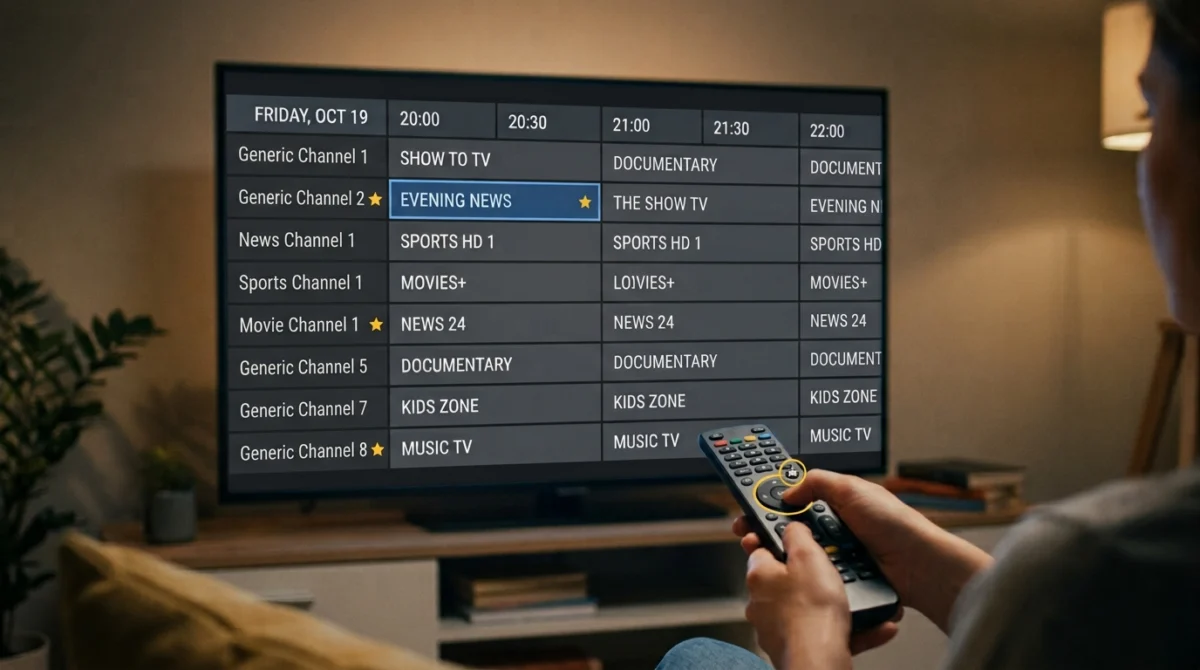
Setting up IPTV favourites is the single quickest way to make a huge channel list feel simple and personal.
A large IPTV playlist can contain a lot of categories, and scrolling through them every evening is slow. A short, well-organised list means you find the channel you want in seconds, and it makes the service easier for everyone else in the home, including people who are not confident with technology.
Want to test it on your own TV first? Try AtlasStream Live free for 24 hours on your Firestick, Smart TV or phone. No payment needed.
Start With an IPTV Favourites List
Most IPTV player apps let you mark a channel as a favourite, usually by pressing and holding on the channel or by pressing a star or heart icon. Begin with the five to ten channels you actually watch, then add more over time. Name or sort the list in a way that makes sense to your household, for example news, sport and kids.
If you share the device, check whether the app supports separate profiles. Profiles can keep each person’s favourites apart, and some apps let you protect certain profiles or categories with a PIN. See IPTV and parental controls if children use the TV.
Hide categories you never use
Many apps allow you to hide groups or categories. If you never watch a particular group, hiding it shortens the list and makes browsing quicker. It is easy to undo, so you lose nothing by trying it.
Favourites for Shared Households
In houses where several people share one TV, IPTV favourites can prevent a lot of arguments. Create separate groups for each person or interest: one for sport, one for news, one for children and one for films. Name them clearly, such as Dad Sport or Kids, so everyone knows which to open. If your player supports profiles, set up a profile for each person with their own favourites and settings.
Agree that each person looks after their own group, adding and removing channels as their tastes change. This keeps the main list tidy and means nobody has to scroll through channels they never watch. For guests or babysitters, a simple group with the main UK channels makes the TV easy to use without explanation.
Suggested groups for a family home
| Group | Typical channels |
|---|---|
| Main UK | BBC One, ITV1, Channel 4, Channel 5 |
| Sport | Football, rugby, F1, cricket channels |
| Kids | Children’s channels and cartoons |
| News | UK and international news |
| Films | Movie channels |
With these groups in place, switching between family members takes seconds, and the TV feels personal to everyone.
Moving Favourites to a New Device
When you upgrade to a new Firestick, Smart TV or Android box, you do not want to rebuild your IPTV favourites from scratch. How easy this is depends on the app. Some players, such as TiviMate Premium, let you back up settings and favourites to a file or cloud storage, then restore them on the new device in a few minutes. Others store favourites on the provider side, so they appear automatically when you sign in with the same login. Simpler apps keep favourites only on the device, which means you need to add them again.
Before switching devices, check which type your app uses. If it supports backups, make one and save it somewhere safe, such as a USB stick, email or cloud drive. If not, take a few photos of your favourites screen so you can rebuild the list quickly. It also helps to keep a written list of your top channels in order, which doubles as a handy reference for anyone else using the TV.
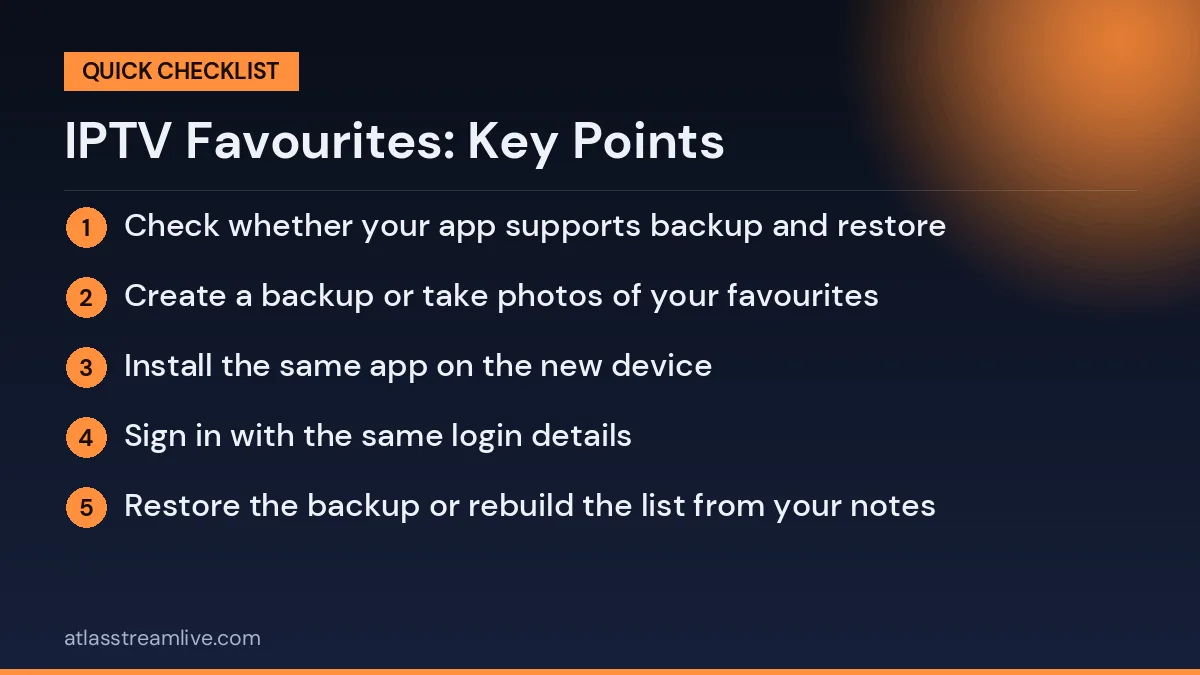
Steps when changing device
- Check whether your app supports backup and restore
- Create a backup or take photos of your favourites
- Install the same app on the new device
- Sign in with the same login details
- Restore the backup or rebuild the list from your notes
- Set the app to open on favourites
Why Organised Favourites Save Time Every Day
It is easy to underestimate how much time scrolling takes. Searching through hundreds of channels several times a day adds up to hours every month. A tidy favourites list cuts this to seconds. It also reduces frustration for less confident users, who may give up if they cannot find what they want. For families, shared houses and older viewers, well-organised IPTV favourites are one of the simplest ways to make the whole service feel easier and more enjoyable.
Spend ten minutes setting them up properly, review them every few months, and you will notice the difference every single evening.
Use search and the guide
Search is faster than scrolling when you know what you want. Many apps have a search box for channels and, separately, for on-demand titles. The TV guide is also worth setting up, because it lets you browse by time instead of by channel. If the guide is empty or out of time, read how the IPTV TV guide works.
Keep Your IPTV Favourites in Good Shape
- Refresh or reload the playlist if channels seem to be missing, because providers can update lists.
- Check your favourites now and then. Names or numbers can change, and a favourite that no longer plays should be replaced.
- Do not delete or edit things you are not sure about while the family is watching. Make changes when you have time.
How to Add IPTV Favourites in Most Players
Every player is slightly different, but adding IPTV favourites usually works the same way:
- Open the live TV channel list.
- Highlight the channel you want to save.
- Press and hold the select or OK button, or press the menu or options button.
- Choose Add to favourites, often shown with a star or heart icon.
- Repeat for each channel you watch regularly.
- Open the Favourites category to see your list.
Many players also let you add films and series to favourites from the on-demand section.
Creating Custom Groups
Some players let you create several favourites groups rather than a single list. This is useful for organising by type or by person.
| Group idea | What to include |
|---|---|
| Everyday | The ten channels you watch most |
| News | National and regional news channels |
| Sport | Every sports channel you follow |
| Kids | Approved children channels only |
| Films | Film channels and on-demand favourites |
| Per person | A personal list for each member of the household |
Reordering Channels
A favourites list is most useful when the most-watched channels are at the top. Many players let you reorder favourites by selecting a channel and choosing Move, or by dragging it on touchscreens. Put your daily news or main entertainment channel first, so it is always one press away. Some players also let you assign channel numbers, which helps people used to traditional TV remotes.
Hiding Categories You Never Use
Large channel lists often contain dozens of categories you will never watch, such as channels in languages you do not speak. Hiding these makes browsing quicker, speeds up the guide on slower devices and reduces clutter. Look for Hide category, Manage categories or Edit groups in the player settings. Hidden categories can usually be shown again later if you change your mind.
Favourites on Different Devices
Favourites are usually stored inside the player app on each device, not in your account. That means setting up favourites on the living room Firestick does not automatically copy them to the bedroom TV or your phone. A few ways to manage this:
- Use the backup feature in your player, if it has one, and restore it on the other devices.
- Use cloud sync where the player supports it, such as syncing between Apple devices.
- Keep a simple written list of your favourites in order, so you can recreate them quickly.
- Use the same player everywhere so menus and steps are identical on every device.
Favourites and the Programme Guide
Many players let you view the guide for favourites only. This makes the guide load faster, especially on older devices, and shows you at a glance what is on across the channels you care about. Some players also let you set the app to open directly on your favourites list or guide, which saves a few steps every time you switch on.
Favourites for Older Viewers
For older relatives, a short, well-ordered favourites list transforms the experience. Include only the channels they watch, put them in the same order as their old channel numbers if possible, and set the player to open on favourites. Write the list on a card next to the TV. Many older viewers never need to see the full channel list once this is set up.
Favourites for Children
A children favourites list, combined with a parental PIN on other categories, steers younger viewers to suitable channels. Include pre-school and children channels, a family film channel and perhaps a nature or documentary channel. Show children how to find their list so they can choose for themselves without wandering into adult categories.
Keeping Your List Up to Date
- Remove channels you no longer watch every few months.
- Add new channels you discover in the guide.
- Check favourites after app updates, which occasionally reset settings.
- Update lists when channel names or numbers change.
Using Search Alongside Favourites
Favourites cover the channels you watch every day, but search helps with everything else. Most players let you search by channel name, programme title or film. Type part of the name rather than the full title, since spellings can vary. On a TV remote, voice search or a phone companion app makes this much faster. Once you find a channel you enjoy, add it to favourites so you do not need to search again.
Fixing Common Favourites Problems
Favourites disappeared
An app update, cache clear or reinstall can remove favourites. Restore from a backup if you made one, or recreate the list from your written note.
A favourite channel stopped working
The channel may have changed name or position in the list. Remove it from favourites, find it again in the full list and add it back.
Cannot reorder channels
Not every player supports reordering. Check the player settings or try another player that offers it.
Favourites do not show in the guide
Make sure the guide is set to show your favourites group, and refresh the guide after adding new channels.
A Ten-Minute Setup Plan
You do not need hours to organise your channels. This simple plan takes about ten minutes:
- Minutes 1 to 2: write down the channels each person watches most.
- Minutes 3 to 5: add them to favourites, using separate groups if your player allows.
- Minutes 6 to 7: reorder so the most-watched channels are at the top.
- Minute 8: hide categories nobody uses.
- Minute 9: set the player to open on favourites and limit the guide to favourites.
- Minute 10: make a backup in the player settings, or note your list on paper.
After this, daily viewing becomes faster for everyone in the house.
Why a Tidy List Helps Performance
Large channel lists and guides use memory on your streaming device. On older Firesticks or small Android boxes, a long list can make the app slow or unstable. Limiting the guide to favourites and hiding unused categories reduces the amount of data the app handles, which often makes menus quicker and playback smoother. Organising favourites is not only about convenience; it can genuinely improve how well your device performs.
IPTV Favourites by Player App
Every player handles favourites a little differently. This table shows what to expect from the most common apps used in the UK:
| Player | How to add | Custom groups | Backup |
|---|---|---|---|
| IPTV Smarters Pro | Long-press OK on a channel | Basic | No built-in backup |
| TiviMate | Long-press OK, then Add to favourites | Yes, unlimited | Yes (Premium) |
| IBO Player | Press the star or OK button | Limited | Cloud via device ID |
| GSE Smart IPTV | Tap the heart icon | Yes | Export to file |
| Smart IPTV / SIPTV | Use the coloured remote buttons | No | Tied to MAC address |
If your app does not keep IPTV favourites after an update, check whether it stores them per playlist. Re-adding the same playlist URL usually brings the list back, while a new URL may start empty.
Sports Fans: Building a Matchday Group
A dedicated sports group is one of the most useful ways to use favourites. Put every sports channel you rely on into one group, in the order you check them on a Saturday. Add the main Premier League, EFL, rugby and F1 channels first, then the backup feeds. When a match starts, you can move between feeds in seconds instead of scrolling through hundreds of entries. Before big events, open the group and check that each channel still plays, so you are not caught out at kick-off.
Common Mistakes to Avoid
- Adding too many channels: a favourites list with 200 entries defeats the purpose. Keep it short.
- Never reviewing the list: channels change names or numbers, so check the list every few months.
- Skipping backups: clearing app data or reinstalling can wipe your favourites in a second.
- Mixing everyone into one group: separate groups for adults, children and sport keep things clean.
- Ignoring the guide setting: limiting the EPG to favourites makes the guide faster and easier to read.
Keeping Your Account Secure
Your favourites are linked to your playlist and login details, so keep those private. Do not share your playlist URL on forums or social media, and use a strong, unique password for any account linked to your service. The National Cyber Security Centre has clear, practical advice on passwords and device security that applies to streaming devices too.
Make it easy for everyone
If an older relative uses the service, set up the favourites for them and show them one simple routine. Our guide to IPTV for older viewers has more ideas.
Try the setup on a trial
The features you can use depend on the app, so test them before you decide. AtlasStream Live has a free 24-hour trial with no card needed, which is enough time to set up your favourites and see how it feels. Ask us on WhatsApp if you need help. Start here: free 24-hour trial.
IPTV Favourites: Frequently Asked Questions
Are favourites saved to my account?
Usually not. Most players store them on each device. Some offer backups or cloud sync.
How many favourites should I have?
Fewer is better. Twenty or thirty channels is plenty for most people.
Can each person have their own list?
Yes, if your player supports multiple groups or profiles.
Do favourites work for films and series?
In many players, yes. Look for a star or heart icon on titles in the on-demand section.
Will favourites survive a new device?
Only if you restore a backup or recreate them. Keep a written list as a simple safeguard.
The Short Version
Good IPTV favourites turn thousands of channels into a short, personal menu. Add the channels you watch, reorder them, create groups for different people or types of content, hide categories you never use and set the player to open on favourites. Back up your list or write it down, and review it every few months. These small steps make every evening simpler and faster.