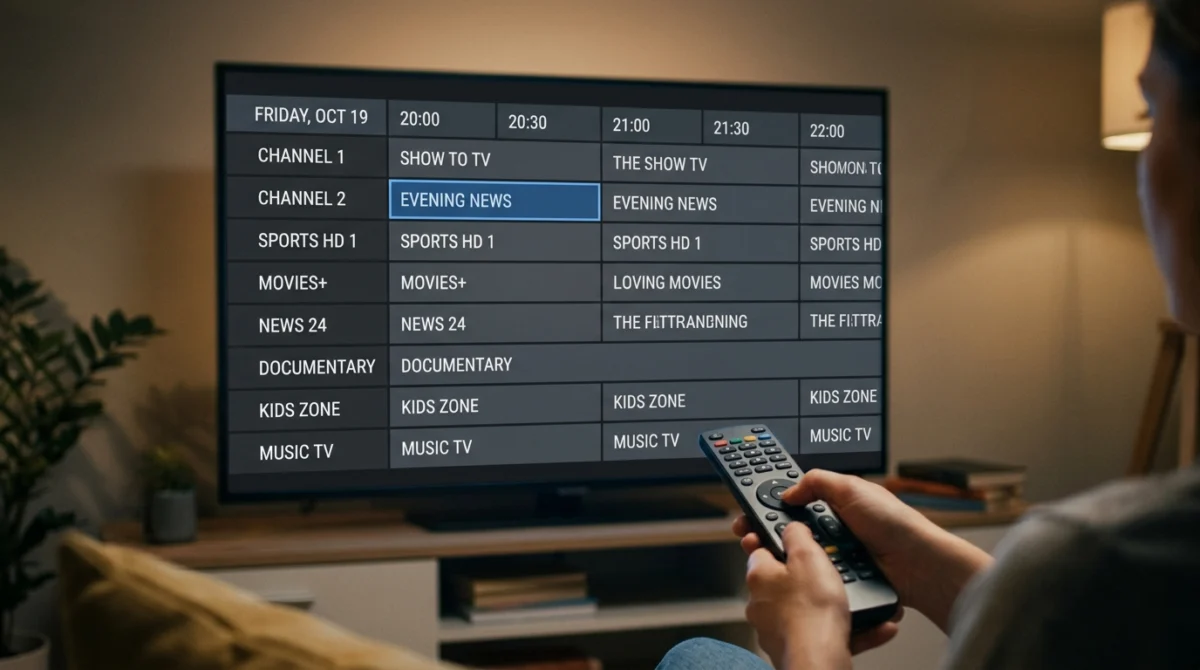
The IPTV EPG in the UK is the on-screen TV guide that tells you what is on now and next, and a few simple checks keep it accurate.
A good programme guide makes browsing a long channel list feel like ordinary TV. A bad one leaves you scrolling a list with no idea what is on. This guide explains what an EPG is, how it reaches your app, and how to fix the most common problems, wrong times and empty channels.
What an EPG Is
EPG stands for electronic programme guide. It is a separate stream of schedule data, usually in a format called XMLTV, that your IPTV player app matches to your channels. The video you watch and the guide data come from different sources, which is why a channel can play perfectly while its guide is empty or wrong.

Want to test it on your own TV first? Try AtlasStream Live free for 24 hours on your Firestick, Smart TV or phone. No payment needed.
How the IPTV EPG in the UK Gets Into Your App
Depending on how your provider supplies your login, the app either picks up the guide automatically or needs you to add a guide address. Look in your app’s settings for a section on EPG or guide sources, and follow the instructions your provider sends. The menu names differ from app to app and change between versions, so use your app’s own help if the steps here do not match what you see.
Why Some Channels Have No Guide
Guide data is matched channel by channel. If a channel is not matched, it shows no programme information even when it plays well. This is common on less popular channels and can happen after a provider changes its channel list. Updating the guide in your app, or restarting the app, sometimes fixes it. If many of your main channels are empty, tell your provider which ones.
Fixing Wrong Programme Times
If programmes appear an hour early or late, the guide and your app are out of step on time zones, often around the clocks changing between GMT and BST. Many apps have a time offset or time shift setting for the guide. Try adjusting it by one hour, and check your device’s own time zone is set to the UK. Check a couple of channels you know well, such as the evening news, to see whether the fix worked.
Keeping the Guide Accurate Over Time
An IPTV EPG in the UK can become out of date if it is not refreshed. Most player apps let you set how often the guide updates. Choose a daily update at a quiet time such as early morning, so the guide is fresh when you start watching. If you notice that programme times are an hour out, check the time zone setting in the app and on the device. This often happens after the clocks change in spring and autumn, or if the device was set up with the wrong region.
If only a few channels show the wrong programmes, the guide data may be matched to the wrong channel. Some apps let you change which guide entry is linked to each channel. If many channels are blank, the EPG source may be temporarily unavailable, so try refreshing later or contact support. Limiting the guide to your favourites also helps: the app loads less data, opens faster and is easier to read.
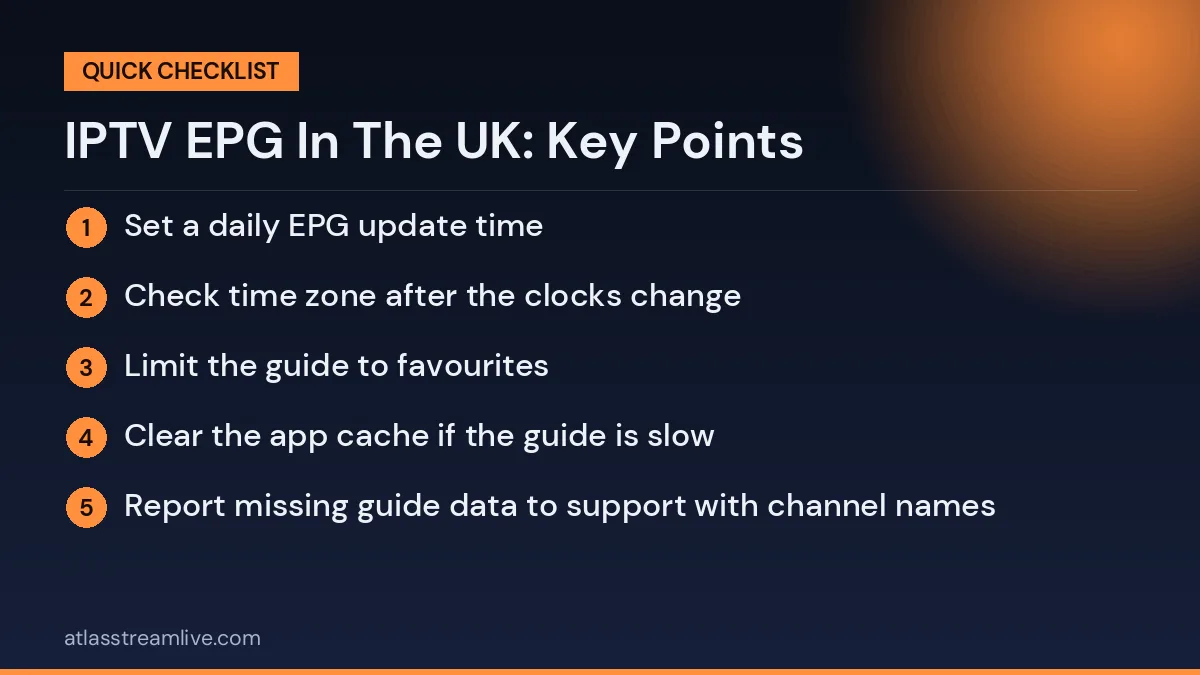
Guide maintenance checklist
- Set a daily EPG update time
- Check time zone after the clocks change
- Limit the guide to favourites
- Clear the app cache if the guide is slow
- Report missing guide data to support with channel names
A few minutes of setup makes the guide one of the most useful parts of your service, rather than a source of confusion.
Using the Guide to Plan Your Week
A working guide is more than a list of what is on now. Use it to scroll ahead and plan your week: spot films, matches and new series in advance, and set reminders if your app supports them. This turns the guide into a simple planner for the whole household.
Catch-Up and Replay
Some services offer replay of past programmes on selected channels. Whether it exists, for how long and on which channels depends entirely on your provider and the channel, so do not assume it is included. If it matters to you, ask before you subscribe and test it during your trial. For UK broadcasters, catch-up is normally watched in the broadcasters’ own apps, as explained in our guide to BBC iPlayer and IPTV.
How IPTV EPG in the UK Data Works Behind the Scenes
Most players use guide data in a format called XMLTV. It is a simple file listing channels, programme titles, start and end times and descriptions. Your provider either supplies this file automatically with your login, or gives you a separate guide address to enter in the app. The player then matches each channel in your list to its listings using a channel ID.
| Part of the guide | What it does |
|---|---|
| Guide source (XMLTV) | The file containing all the listings |
| Channel ID | Links each channel in your list to its listings |
| Time offset | Adjusts listings for your time zone |
| Refresh interval | How often the app downloads new guide data |
| Guide days | How many days ahead and behind the guide shows |
If a channel shows no information, it often means its ID does not match the guide file, even though the channel itself plays normally.
Fixing an Empty or Wrong Guide: Step by Step
- Wait a few minutes after first login; large guides take time to download.
- Refresh the guide using the reload or update EPG option in your player settings.
- Check the guide address if your provider gave you one, and make sure it is typed exactly.
- Check the time offset. If every programme is exactly one hour out, adjust the offset by one hour.
- Clear the app cache and restart the device.
- Contact support if specific channels never show listings, and name those channels.
The GMT and BST Problem
The UK switches from GMT to British Summer Time on the last Sunday in March and back on the last Sunday in October. If your guide was set up with a fixed offset, it may be an hour out for days after the change. Most modern players adjust automatically, but if yours does not, change the time offset manually after each clock change. A well-maintained provider guide should handle this for you.
Regional Listings
Regional channels such as BBC One and ITV show different programmes at certain times, especially around local news. If your guide shows national listings for a regional channel, the information may not match what you see on screen. Check during your trial whether the guide reflects your region.
Getting the Most From the Guide
Use the grid view
Most players offer a grid view showing several channels across a timeline. It is the fastest way to see what is on across your favourites at a glance.
Filter by favourites
Viewing the guide for your favourites group only, rather than thousands of channels, makes it far quicker to scroll and load.
Set reminders
Some apps let you set a reminder for a programme. The app alerts you shortly before it starts, so you do not miss it.
Jump to catch up from the guide
On channels with catch up, you can often scroll back in the guide and select a programme that already aired to watch it from the start.
Read programme details
Selecting a programme in the guide usually shows a description, episode title and sometimes the series and episode number.
Guide Performance on Different Devices
Guide data for a large channel list can be big, and loading it uses memory. On older Firesticks or smaller Android boxes, the guide may load slowly or crash the app. If this happens, reduce the number of guide days, hide categories you never watch, or limit the guide to favourites. Newer 4K sticks and boxes handle large guides much more comfortably.
| Device | Typical guide experience | Tip |
|---|---|---|
| Older entry-level stick | Can be slow with big guides | Limit to favourites and fewer days |
| 4K stick or box | Smooth for most guides | Clear cache every few weeks |
| Smart TV app | Varies by model | Keep TV software updated |
| Phone or tablet | Usually fast | Use landscape mode for the grid |
Why an Accurate Guide Matters
A guide that is wrong or empty seems like a small problem, but it affects every evening. You cannot plan what to watch, you miss programmes that moved, and catch up becomes harder to navigate. An accurate, regularly updated guide is one of the clearest signs of a service that is well maintained. Checking it is one of the most useful things you can do during a trial.
Comparing the Guide With Official Listings
The quickest way to check accuracy is to compare a few programmes with an official source. Broadcasters publish their schedules online, and Freeview offers a free TV guide covering the main UK channels. Pick three or four channels you watch regularly and check tonight’s programmes at the same times. If they match, your guide is in good shape. If they are consistently an hour out, adjust the time offset. If they are completely different, the channel ID may be matched to the wrong listings.
Guide Problems and What They Usually Mean
| What you see | Likely cause | Fix |
|---|---|---|
| Whole guide empty | Guide not downloaded or address missing | Refresh, check guide address |
| Some channels empty | Channel IDs do not match | Ask support to check those channels |
| Everything one hour out | Time offset or clock change | Adjust the offset |
| Wrong programmes on a channel | Mapped to the wrong listings | Report the channel to support |
| Guide stops after a day or two | Guide not refreshing | Check refresh settings |
| App crashes on the guide | Guide too large for the device | Limit days or use favourites |
Setting Up the Guide in Popular Players
Every player is slightly different, but the steps are similar:
- Open the player settings and find the section called EPG, TV Guide or Programme Guide.
- If you logged in with Xtream Codes style details, the guide is often added automatically.
- If you use an M3U playlist, look for an option to add an EPG or XMLTV address and paste the one from your provider.
- Set the number of days to keep, usually two to seven.
- Choose how often to refresh, ideally daily.
- Check the time zone or offset setting matches UK time.
- Save, then reload the guide.
The Guide and Catch Up Together
The guide and catch up are closely linked. On channels that support catch up, the guide often shows a small icon next to programmes you can still watch. Scrolling back in the guide and selecting one of these starts it from the beginning. If the guide is wrong, catch up becomes harder to use because you cannot find the right programme. Keeping the guide accurate makes every other feature easier.
Helping Less Confident Viewers
For older relatives or anyone new to streaming, a simple guide makes a big difference. Limit the guide to a short favourites list with their usual channels, increase the text size if the player allows it, and show them how to see what is on now and next. Once it is set up, many people find a clear guide easier to use than flicking through channels one by one.
Keeping the Guide Fast and Reliable
A few habits keep the guide working well over time. Clear the player cache every few weeks so old guide data does not pile up. Restart the device once a week. Keep the player app updated, since new versions often improve how the guide loads. Hide channel categories you never watch, which reduces the amount of guide data the app has to handle. And if you change provider or playlist, delete the old guide source from the settings so the app does not try to load two sets of listings at once.
Reporting a Guide Problem Effectively
If you need help, give support clear details: the channel names affected, what the guide shows, what is actually on air, your device and app, and when you first noticed the problem. A photo of the guide screen helps. Clear reports are much easier to fix, especially when the issue only affects a few channels. Good providers treat guide problems seriously, because they know how much daily viewing depends on accurate listings.
Planning Your Week With the Guide
Many people only use the guide to see what is on right now, but it is also a useful planning tool. On Sunday evening, scroll through the week ahead for your favourite channels and set reminders for anything you do not want to miss: a new series, a big match, a documentary. Combined with catch up, this turns the guide into a simple weekly planner, so you spend less time searching and more time watching the programmes you actually care about.
Check the IPTV EPG in the UK During Your Trial
Open the guide on the device you will use, compare a few channels’ listings against the real schedule, and note how fast it loads. Our guide on what to check in a free IPTV trial includes the guide in its checklist, and our troubleshooting guide covers other problems. For player options, see our guide to IPTV players.
Checking the Guide With AtlasStream Live
AtlasStream Live offers a free 24-hour trial with no credit card needed. Use it to look at the guide on your own device, and message us on WhatsApp if a channel’s listings look wrong. You can request the trial on the free trial page.
The Short Version
The guide and the video are separate. Update the guide when channels are blank, adjust the time offset if times are out, do not assume catch-up is included, and test the guide before you pay.
IPTV EPG in the UK: Frequently Asked Questions
Why does my guide show nothing for some channels?
Not every channel has guide data, and some may not be matched correctly. Ask support about the specific channels.
How often does the guide update?
Many players refresh daily. You can usually trigger a manual refresh in the settings.
Can I add my own guide source?
Some players allow it, but matching channels manually can be time-consuming. Using the guide your provider supplies is usually simplest.
Does the guide affect picture quality?
No. The guide is separate from the video stream. A broken guide does not mean the channel itself is broken.
The Short Version
The IPTV EPG in the UK relies on guide data matched to each channel. If it is empty, refresh it and check the guide address. If it is an hour out, adjust the time offset, especially after the clocks change. If some channels never show listings, ask support. Limit the guide to favourites on slower devices, and check accuracy against official listings during your trial.
Want to check the guide yourself? Request your free 24-hour trial.
Already sure? See plans and subscribe → · from £15, no contract.