4K sounds like an easy upgrade: more detail, a sharper picture. With IPTV it is more complicated, because the picture you see depends on the source, your device, your TV and your connection. This guide explains what 4K means and what to check before you rely on it.
Getting 4K IPTV in the UK to look its best depends on your TV, device, cables and broadband all working together.
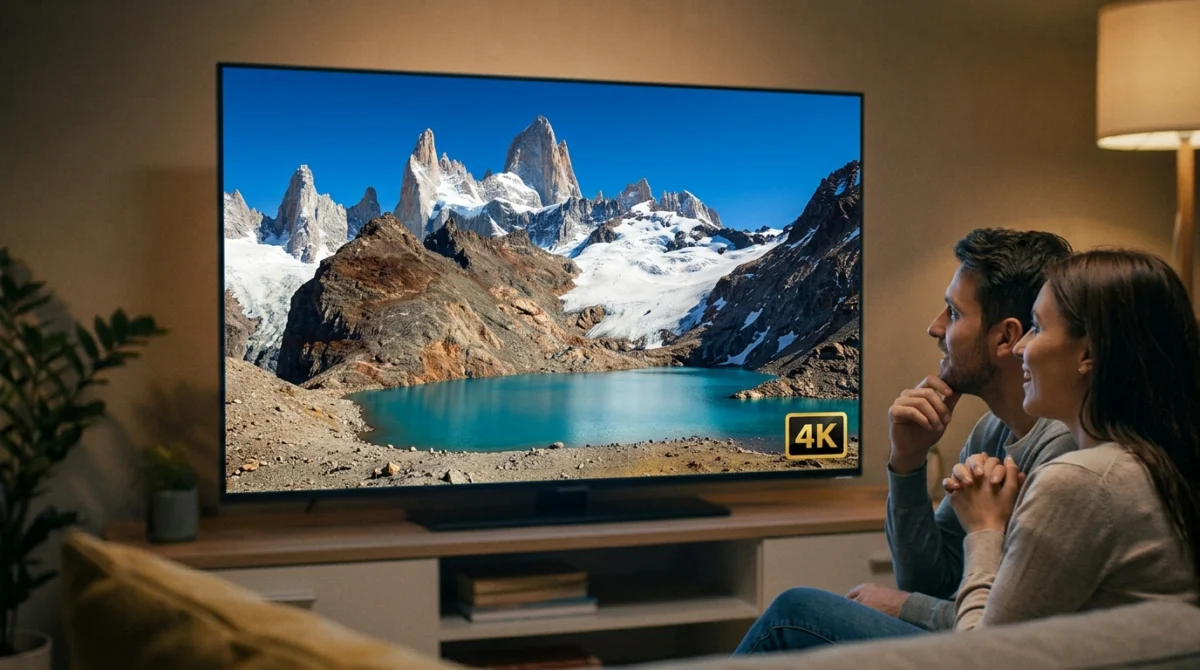
4K, also called Ultra HD, is a resolution of 3840 by 2160 pixels, about 8.3 million pixels, which is four times the pixels of Full HD. On a large, good-quality screen viewed from a normal distance, the extra detail can be visible.
Want to test it on your own TV first? Try AtlasStream Live free for 24 hours on your Firestick, Smart TV or phone. No payment needed.
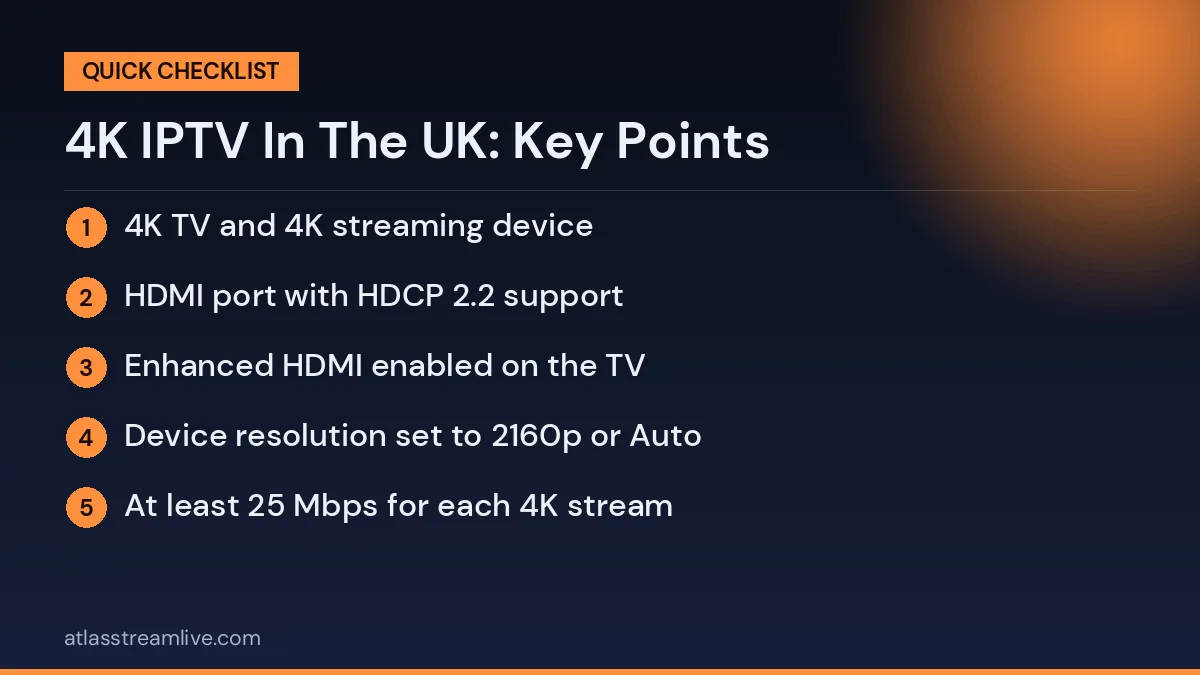
Use a high-speed HDMI cable and the HDMI port on your TV that supports 4K, since not every port does. Check the TV is set to its 4K or HDR mode for that input. Use a wired connection where you can, and check whether your player app has a quality setting that limits resolution.
4K IPTV in the UK: What You Actually Need
Watching 4K IPTV in the UK only works when every part of the chain supports it. If one link is missing, you will see HD or worse, however the channel is labelled.
| Part of the chain | What you need |
|---|---|
| TV | A 4K (UHD) TV, ideally with HDR support |
| HDMI port | One that supports 4K at 60Hz, often labelled or set to enhanced mode |
| HDMI cable | High Speed or Ultra High Speed cable |
| Streaming device | A 4K-capable stick, box or TV app with HEVC decoding |
| Player app | An app that supports 4K playback |
| Broadband | Around 25 Mbps or more per 4K stream at peak times |
| Content | A genuine 4K source, not upscaled HD |
Setting Up Your TV and Device for 4K
- Plug the streaming device into a 4K-capable HDMI port on the TV.
- In the TV settings, turn on enhanced HDMI, HDMI UHD Color or similar for that port.
- In the streaming device display settings, set resolution to 4K or auto.
- Turn on match frame rate or match content if available.
- Check HDR settings are enabled if your TV supports HDR.
- Play a known 4K source and check the info screen shows 4K or 2160p.
HDR Formats Explained Simply
HDR, or high dynamic range, gives brighter highlights, deeper shadows and richer colours. There are several formats:
| Format | What it is |
|---|---|
| HDR10 | The basic, widely supported HDR standard |
| HDR10+ | Adds scene-by-scene adjustments, common on Samsung TVs |
| Dolby Vision | Advanced HDR with scene-by-scene adjustments, common on LG, Sony and others |
| HLG | Designed for live broadcast, used by some UK sport and BBC content |
Your TV, device and the content all need to support the same format for HDR to work. If HDR content looks too dark or washed out, check that HDR is enabled on both the TV port and the streaming device, and try a different picture mode.
Why Some 4K Is Not Really 4K
A channel or title labelled 4K is not always delivered in true 4K. Sometimes it is HD upscaled, or compressed so heavily that it looks no better than good HD. Signs include a soft picture, blocky areas in dark scenes, and an info screen showing 1080p. When testing 4K IPTV in the UK, compare a 4K version with the HD version of the same content. If you cannot see a difference on a large 4K TV, the 4K version may not be genuine or your setup may not be passing 4K through.
Broadband for 4K
4K needs far more data than HD. As a guide, aim for 25 Mbps or more per 4K stream, available at the time you watch, with extra headroom if other people use the internet at the same time. Full fibre makes reliable 4K much easier. Check what is available at your address with the Ofcom coverage checker, and test your real evening speed with a tool such as Speedtest.
Wired Connections for 4K
4K streams are much less forgiving of weak Wi-Fi than HD. An Ethernet cable from the router to the streaming device is the most reliable way to keep 4K smooth. Some popular 4K sticks do not have an Ethernet port, but an inexpensive adapter adds one. If cabling is not possible, a strong 5 GHz signal or a mesh Wi-Fi point near the TV can work well.
Choosing a 4K Streaming Device
If your TV app does not handle 4K well, a dedicated streaming device often does. Look for:
- 4K and HDR support, ideally including Dolby Vision and HDR10+.
- HEVC (H.265) hardware decoding, which most 4K streams use.
- Fast Wi-Fi such as Wi-Fi 6, or an Ethernet port or adapter.
- Enough memory and storage for large playlists and guides.
- Regular software updates from the manufacturer.
Current 4K sticks and boxes from well-known brands meet these needs at reasonable prices.
TV Settings for the Best 4K Picture
Picture mode
Use Filmmaker, Cinema or Movie mode for films, and Standard or Sport for live events. Vivid modes look bright in the shop but are rarely accurate at home.
Motion smoothing
Turn it down or off for films to avoid the soap-opera effect. For sport, a low setting can help fast motion.
Brightness and contrast
Adjust for your room. A dark room needs less brightness than a sunny living room.
Sharpness
Keep it low. High sharpness adds artificial edges that look worse with true 4K.
4K IPTV in the UK: Common Problems and Fixes
| Problem | Likely cause | Fix |
|---|---|---|
| Only HD showing | Wrong HDMI port or device setting | Use a 4K port, enable enhanced HDMI, set device to 4K |
| Picture flickers or goes black | Cable not fast enough | Use a High Speed or Ultra High Speed HDMI cable |
| Buffering on 4K only | Connection too slow at peak times | Use Ethernet or choose HD in the evening |
| HDR looks dull or dark | HDR settings mismatched | Enable HDR on the port and device, change picture mode |
| Judder in pans | Frame rate mismatch | Turn on match frame rate |
Is 4K Worth It for You?
4K is not essential for everyone. It makes the biggest difference on large screens viewed from a normal sofa distance. On smaller TVs, or when sitting far away, good HD can look almost identical.
| TV size | Viewing distance | Benefit of 4K |
|---|---|---|
| Under 43 inches | Normal room | Small |
| 50 to 55 inches | 2 to 3 metres | Noticeable |
| 65 inches and above | 2 to 3 metres | Large |
If your broadband struggles in the evening, stable HD on a large TV often looks better than stuttering 4K. Many people use 4K for films and on-demand content, where the app can buffer ahead, and HD for live channels at peak times.
Data Use With 4K
4K uses a lot of data, often 7 GB or more per hour. Most fixed-line UK broadband packages are unlimited, but if you use a capped 4G or 5G home broadband plan, 4K viewing can use your allowance quickly. Check your plan before watching a lot of 4K.
4K and Live Sport
Some live sport is produced in 4K, often with HDR using the HLG format. Live 4K is especially demanding because the app cannot buffer far ahead. For big matches, a wired connection and a modern device are essential. If 4K stutters during a match, switching to the HD channel usually gives a smooth picture without missing the action.
Sound to Match a 4K Picture
A stunning 4K picture deserves good sound. Many 4K films include Dolby Atmos or 5.1 surround audio. To enjoy it, connect a soundbar or AV receiver using HDMI ARC or eARC, and set your streaming device audio output to auto or passthrough. If you hear no sound with certain titles, switch the output to PCM or stereo as a test. A decent soundbar is often a bigger improvement to the overall experience than moving from HD to 4K.
Testing 4K During a Trial
- Check your setup first: 4K HDMI port, enhanced mode, device set to 4K.
- Run a speed test on the streaming device in the evening.
- Play a 4K channel or film and confirm 2160p on the info screen.
- Watch for 15 minutes and note any buffering or quality drops.
- Compare with the HD version of the same content.
- Test again during a busy evening or live event.
Buying a New TV With 4K Streaming in Mind
If you are shopping for a new TV and 4K streaming matters to you, a few features are worth more than headline claims:
- At least one HDMI 2.1 or full-bandwidth HDMI port supporting 4K at 60Hz with HDR.
- Support for the HDR formats you will use, ideally Dolby Vision, HDR10+ and HLG.
- An Ethernet port for a stable wired connection.
- A good app platform with a reliable player, or space for a streaming stick.
- A manufacturer with regular software updates.
- eARC for connecting a soundbar with full-quality audio.
Panel technology matters too. OLED TVs offer deep blacks that suit dark rooms and films, while bright LED and Mini LED TVs handle sunny living rooms and daytime sport well. Choose based on where and when you watch most.
Room Setup for 4K
Sit close enough to appreciate the detail. For a 55-inch 4K TV, around two metres works well for most people. Reduce reflections by positioning the TV away from windows or using curtains during the day. Mount or place the TV so the centre of the screen is roughly at eye level when seated. These simple choices make a 4K picture look noticeably better without spending anything extra.
Keeping Expectations Realistic
Not every programme is available in 4K, and many channels broadcast in HD. Live 4K is still less common than HD, and much 4K content comes from films, documentaries and selected sport. That is normal. A good setup simply makes sure that when genuine 4K is available, your home is ready to show it at its best.