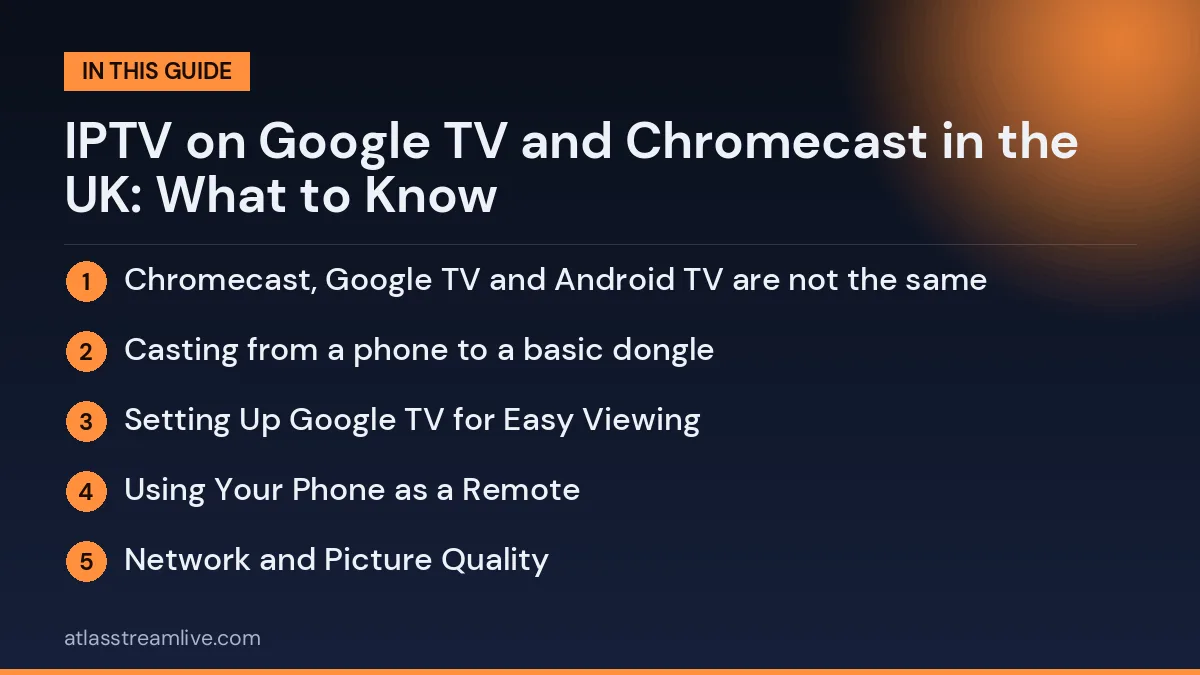
Chromecast, Google TV and Android TV are not the same
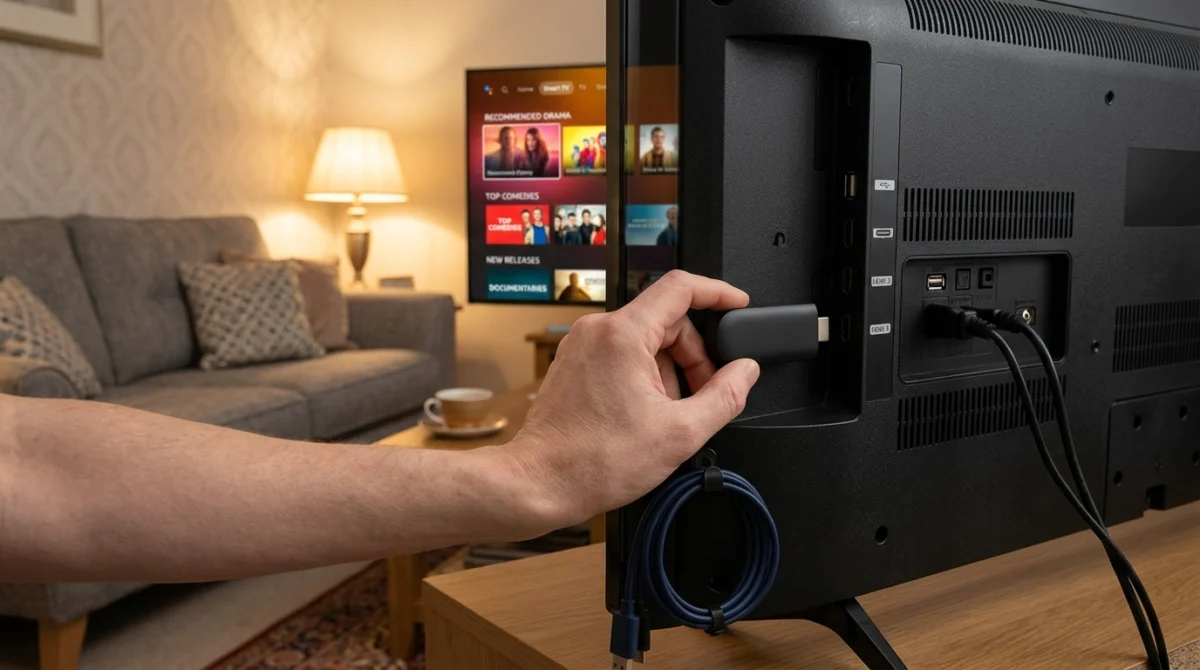
Setting up IPTV on Google TV and Chromecast is easy once you know which device you have, because each one works a little differently.
People often use the word Chromecast for several different products, and the difference matters for IPTV. A basic casting dongle receives video that you send from a phone, tablet or laptop. It does not run apps on its own. A Google TV or Android TV device, including Chromecast with Google TV and Google’s newer streamer, is a full device with its own app store and home screen, and you install apps directly on it. Many Smart TVs also run Google TV or Android TV built in.
So before you start, check which one you have. If it has its own remote and a home screen with a Play Store, it is a full device.
IPTV on Google TV and Chromecast: Using a Google TV or Android TV Device
Full devices can run IPTV player apps in the same way as a phone does. The usual steps:
- Open the Google Play Store on the device and search for an IPTV player.
- Check the app’s description to see which login types it accepts, such as an M3U link or Xtream Codes details. Our guide to M3U vs Xtream Codes explains the difference.
- Install the app, open it and enter the details your provider gave you.
- Wait for the channels to load, check the TV guide and test a live channel.
Want to test it on your own TV first? Try AtlasStream Live free for 24 hours on your Firestick, Smart TV or phone. No payment needed.
If an app you want is not in the Play Store, some providers offer their own installation file. Only install something like this if it comes from a source you trust, and read our red flags guide if you are unsure about a provider.
Casting from a phone to a basic dongle
A casting dongle can show video from a phone or tablet, but only if the app on the phone supports casting. It is a convenient extra, not the best everyday method. The phone has to stay connected, nobody can use it for other tasks without affecting the picture, and a call or a low battery can interrupt the stream. If you mostly want IPTV on the TV, a full device or a Smart TV app is a better fit.
Setting Up Google TV for Easy Viewing
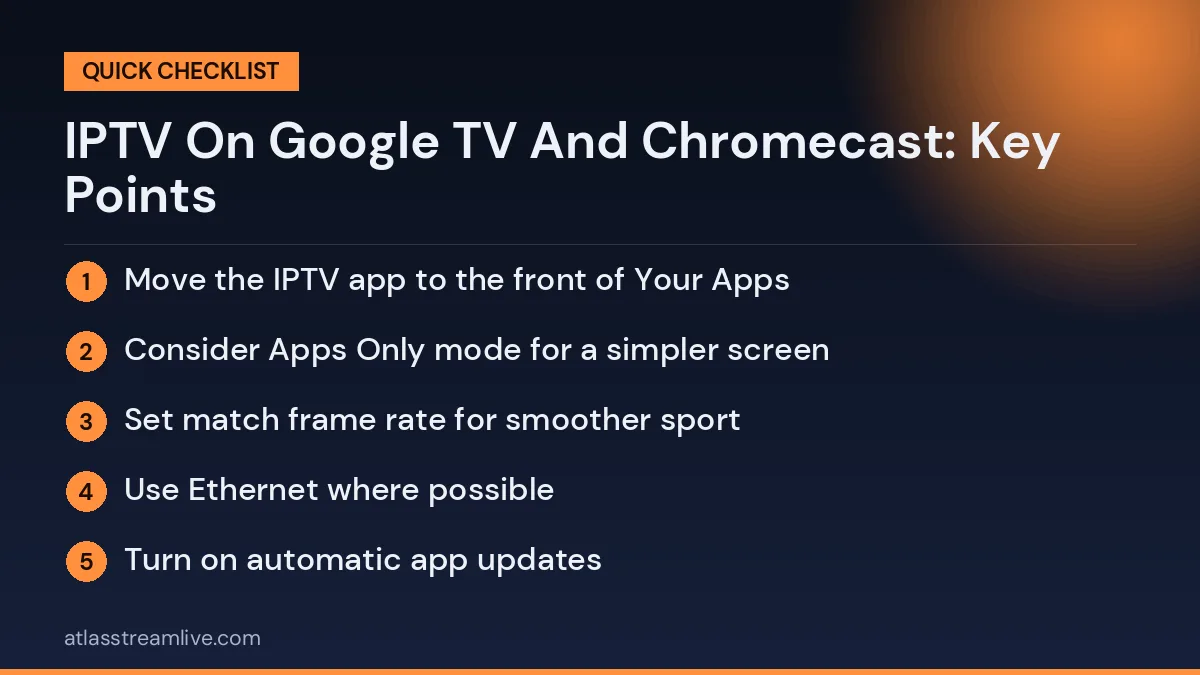
Google TV focuses on recommendations, which can make IPTV apps harder to find at first. To keep things simple, move your IPTV app to the top of the Your Apps row: highlight it, long-press the select button and choose Move. You can also turn on Apps Only mode in the settings, which hides recommendations and shows a clean list of your apps, ideal for older viewers or anyone who finds the home screen busy.
In Display and Sound settings, set resolution to Auto and turn on match frame rate if available, which makes sport smoother. Use the Google TV Streamer’s Ethernet port where possible, or connect older Chromecast models with an Ethernet adapter. Turn on automatic app updates so your IPTV player stays current.
Google TV setup checklist
- Move the IPTV app to the front of Your Apps
- Consider Apps Only mode for a simpler screen
- Set match frame rate for smoother sport
- Use Ethernet where possible
- Turn on automatic app updates
These small changes make IPTV on Google TV and Chromecast feel faster and more straightforward for everyone in the house.
Using Your Phone as a Remote
The Google Home app and the Google TV app on your phone can act as a remote for Google TV devices. This is handy for typing long login details, searching for content or when the physical remote goes missing. Make sure the phone and TV device are on the same Wi-Fi network, then open the app and choose your TV. It makes entering IPTV login details much quicker than using an on-screen keyboard.
You can also cast from many IPTV apps on your phone to a Chromecast or Google TV device, which is useful when guests want to show something on the big screen.
With the app in the right place, sensible display settings and a phone ready as a remote, everyday viewing on Google TV becomes quick and relaxed for the whole family.
Updates usually install overnight, so leave the device plugged in.
Network and Picture Quality
Google TV devices work well on a good Wi-Fi connection, and some have an Ethernet option through an adapter. For live sport, a wired connection is more reliable. See Wi-Fi or Ethernet for IPTV for the practical steps.
What to do if your device is old
Older devices can be slow or may no longer receive updates, and newer apps may not install on them. If the app runs slowly or crashes, a Firestick or a newer Android box may be a better investment. Read Firestick or Android TV box for a comparison.
IPTV on Google TV and Chromecast: Which Device Do You Have?
Getting IPTV on Google TV and Chromecast working depends entirely on which device you own. They look similar but work very differently.
| Device | Has its own apps? | Has a remote? | How IPTV works |
|---|---|---|---|
| Original Chromecast dongle | No | No | Cast from a phone app that supports casting |
| Chromecast with Google TV | Yes | Yes | Install a player from the Play Store |
| Google TV Streamer | Yes | Yes | Install a player from the Play Store |
| TV with Google TV built in | Yes | Yes, the TV remote | Install a player from the Play Store |
| TV with Android TV | Yes | Yes | Install a player from the Play Store |
If your device came with a remote and has its own home screen with apps, you can install an IPTV player directly. If it is a small dongle with no remote, it can only receive video cast from another device.
Installing a Player on Google TV
- Update the device under Settings, System, About.
- Open the Google Play Store from the Apps section.
- Search for an IPTV player that supports your login type.
- Install it and open it from the home screen.
- Enter your login details, ideally typed using the Google TV app on your phone.
- Wait for channels and the guide to load, then set up favourites.
Casting to a Basic Chromecast
With an original Chromecast, the phone does the work. Open an IPTV app on your phone that supports casting, start a channel and tap the cast icon to send it to the TV. Casting is convenient but has drawbacks: the phone must stay nearby and connected, the stream depends on two Wi-Fi links, and channel switching is slower. For everyday viewing, a device that runs the player directly is usually smoother.
Settings That Improve the Picture
- Display resolution: set to 4K or auto under Settings, Display and Sound.
- Match content frame rate: turn it on for smoother UK broadcasts at 50 frames per second.
- HDR format: allow the formats your TV supports, such as HDR10 and Dolby Vision.
- Audio output: use auto, or switch to stereo if you have sound problems.
- Player decoder: try hardware decoding first, then software if you see glitches.
Network Tips
Chromecast with Google TV has no Ethernet port, but an official or compatible Ethernet adapter adds one through the power cable. The Google TV Streamer and many Google TV televisions have a built-in Ethernet port. For live sport and 4K, a wired connection is the most reliable option. If you use Wi-Fi, connect to 5 GHz and keep the device away from the back of the TV, where signals can be weaker. Test your speed with a tool such as Speedtest; around 10 Mbps is comfortable for HD and 25 Mbps or more for 4K.
Using the Google TV Phone App
The Google TV app on your phone works as a remote with a full keyboard. It is far quicker for entering server addresses, usernames and passwords than the on-screen keyboard. It is also handy if the physical remote goes missing. Make sure your phone and Google TV device are on the same Wi-Fi network.
Kids Profiles and Parental Controls
Google TV supports kids profiles, managed through Google Family Link. You choose which apps are allowed, set screen time limits and bedtimes, and control content ratings. Combine this with the PIN lock in your IPTV player to keep adult categories hidden. Together they give strong protection for younger viewers.
Older Devices and Upgrades
Original cast-only Chromecast dongles are increasingly limited, and Google has moved its focus to newer Google TV devices. If you still use an older dongle and find casting frustrating, upgrading to a device with its own apps and remote usually makes IPTV much easier and more reliable.
Organising the Google TV Home Screen
Google TV focuses on recommendations, which can push your IPTV player off the main screen. To keep it easy to find, move it to the favourites row at the top. Highlight the app, press and hold the select button, and choose to move it. You can also turn on apps-only mode in the settings, which removes recommendations and shows a simple grid of your apps. Many people, especially less confident viewers, find apps-only mode clearer.
Using Official UK Apps on Google TV
BBC iPlayer, ITVX, Channel 4, My5 and many other UK apps are available in the Play Store. Placing them next to your IPTV player gives you reliable catch up and box sets. Google TV can also include some of their content in its recommendations. A TV Licence is required to watch live TV on any channel or to use BBC iPlayer.
Fixing Common Problems
The player is not in the Play Store
App availability varies by device and region. Try another compatible player, or check the developer website for an official Google TV version.
The app is slow
Clear the app cache under Settings, Apps, then restart the device. Free up storage by removing apps you do not use.
Login fails
Re-enter details using the phone app keyboard, checking capitals and spaces. Confirm you selected the right login type.
Picture judders
Turn on match content frame rate in Display and Sound settings.
No sound
Set audio output to stereo as a test, then try auto again.
Casting keeps dropping
Move the phone closer to the router, make sure both devices use the same 5 GHz network, or install the player directly on a Google TV device instead.
Storage on Google TV Devices
Some Google TV devices have limited storage. Large IPTV guides and other apps can fill it quickly, causing slow menus and app crashes. Check free space under Settings, System, Storage. Clear caches regularly, remove unused apps and avoid installing apps you will not use. Keeping at least a gigabyte or two free helps the device run smoothly.
Taking Google TV on Holiday
A small Google TV dongle travels easily, but hotel Wi-Fi often uses a login page that streaming devices cannot open. Test before relying on it, or use a phone or laptop instead. Remember that many UK apps only work inside the UK.
Google TV for Older Relatives
Google TV can be very simple once set up. Turn on apps-only mode to remove busy recommendations, place the IPTV player and their favourite official apps in the top row, and create a short favourites list in the player. Show them how to press the microphone button and say open followed by the app name, which many people find easier than navigating menus. Write the basic steps on a card next to the TV, and keep the Google TV phone app on your own phone so you can help if they get stuck.
Sound and Soundbars
Google TV devices support surround sound and Dolby Atmos when connected to compatible equipment. Connect the device to the TV, and the TV to a soundbar using HDMI ARC or eARC. If speech is hard to hear, use the dialogue setting on your soundbar. For private listening, Bluetooth headphones can pair directly with many Google TV devices, which is useful in shared homes and for late-night viewing.
Choosing a New Device
If you are buying new, look for a Google TV device with 4K and HDR support, enough storage, a remote with voice control and either a built-in Ethernet port or a simple adapter option. Check that the device receives regular updates from the manufacturer. A modern Google TV device gives you the full Play Store, strong parental controls and smooth IPTV playback in one small package.
Keeping Your Google TV Device Healthy
A little maintenance keeps a Google TV device fast for years. Install system updates when prompted under Settings, System, About. Restart the device once a week to clear memory. Clear the IPTV player cache every few weeks and remove apps you no longer use. Keep the device somewhere with airflow rather than tucked tightly behind the TV, as heat slows it down. If the device ever becomes very sluggish and nothing else helps, a factory reset gives it a fresh start, though you will need to reinstall apps and log in again afterwards.
Making a note of your login details before resetting saves time. These simple habits keep IPTV playback smooth and menus responsive, so the device stays a pleasure to use long after you first set it up.
Test it on your own TV
The simplest way to find out if your device works is to try it. AtlasStream Live offers a free 24-hour trial with no card needed, so you can install the app, check the guide and test live channels in the evening. If you are not sure which type of device you have, send us the model on WhatsApp and we will tell you what to try. Start here: free 24-hour trial.
IPTV on Google TV and Chromecast: Frequently Asked Questions
Can I install IPTV apps on an old Chromecast?
No. Original Chromecast dongles do not run apps. You can only cast from a phone app that supports casting.
Is Google TV the same as Android TV?
Google TV is a newer interface built on Android TV. Both use the Play Store and run the same IPTV players.
Why does casting stutter?
Casting relies on your phone and Wi-Fi. Running the player directly on a Google TV device avoids this extra step.
Do I need a Google account?
Yes, to use the Play Store and set up the device.
Can I use Ethernet?
Yes, with an adapter on Chromecast with Google TV, or built in on many other Google TV devices.
Does Google TV support 4K IPTV?
4K-capable Google TV devices do, if your TV, connection and content support 4K.
The Short Version
For IPTV on Google TV and Chromecast, check which device you have. Google TV devices and televisions run IPTV players from the Play Store, with a remote and their own home screen. Basic Chromecast dongles only receive video cast from a phone. Use Ethernet where possible, turn on frame rate matching, use the phone app to type logins, and pin your player to the top row for quick access.