Can you use IPTV on an Apple TV?
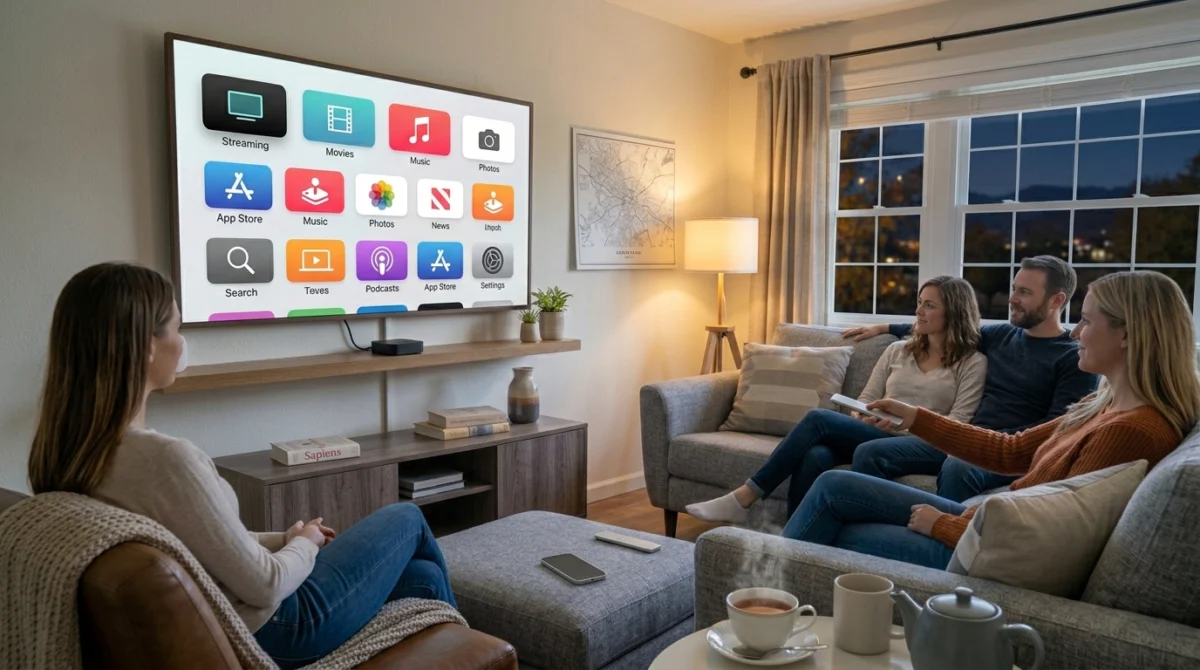
Setting up IPTV on Apple TV is straightforward, and with the right settings an Apple TV can be one of the smoothest ways to watch.
Usually yes, but with one important difference. Apple TV runs tvOS, and every app has to come from the Apple App Store. There is no sideloading like on a Firestick or an Android TV box. So the question is not whether your Apple TV can play IPTV, it is whether a suitable player app is available in the App Store today and whether it accepts the login details your provider gives you.
The list of apps changes over time, and an app can disappear or change how it works after an update. That is why you should check the App Store yourself on the day you plan to subscribe, rather than rely on an old article or a forum post.
Want to test it on your own TV first? Try AtlasStream Live free for 24 hours on your Firestick, Smart TV or phone. No payment needed.
What You Need for IPTV on Apple TV Before You Start
The setup is short if you have the right pieces ready before you sit down.
- An Apple TV model that can install apps from the App Store (HD or 4K models do; very old models may not).
- A stable internet connection. An Ethernet cable is better than Wi-Fi if your model has a port.
- The login details from your provider. Depending on the service this is an M3U link, an Xtream Codes style login (server address, username and password), or a portal address.
- An IPTV player app from the App Store that supports the format your provider uses.
If you are not sure what the difference between those formats is, our guide to M3U vs Xtream Codes explains it in plain English.
The usual setup steps
The exact screens depend on the app, but the order is almost always the same.
- Open the App Store on the Apple TV and search for an IPTV player. Read the description to see which login types it supports.
- Install the app and open it.
- Choose the option to add a playlist or log in, and enter the details from your provider exactly as given. Copy and paste on a phone and send them to yourself if typing with the remote is slow.
- Wait for the channel list to load. A large list can take a minute or two the first time.
- Check that the TV guide fills in and that a live channel starts within a few seconds.
Getting the Best From Apple TV Settings
Apple TV has excellent picture quality, but a few settings make a big difference with IPTV. In Settings, Video and Audio, turn on Match Content for both dynamic range and frame rate. This makes the Apple TV switch to the correct format for each stream, so sport at 50 frames per second looks smooth and does not judder. Set the format to 4K SDR rather than 4K HDR if your TV makes non-HDR content look dull.
Use Ethernet where possible, as the Apple TV 4K with Ethernet port gives the most stable connection. If you use Wi-Fi, keep the router nearby and use the 5 GHz band. In the IPTV app, set favourites and limit the guide to them for faster loading. These steps help IPTV on Apple TV feel as polished as the rest of the Apple experience.
Recommended Apple TV settings
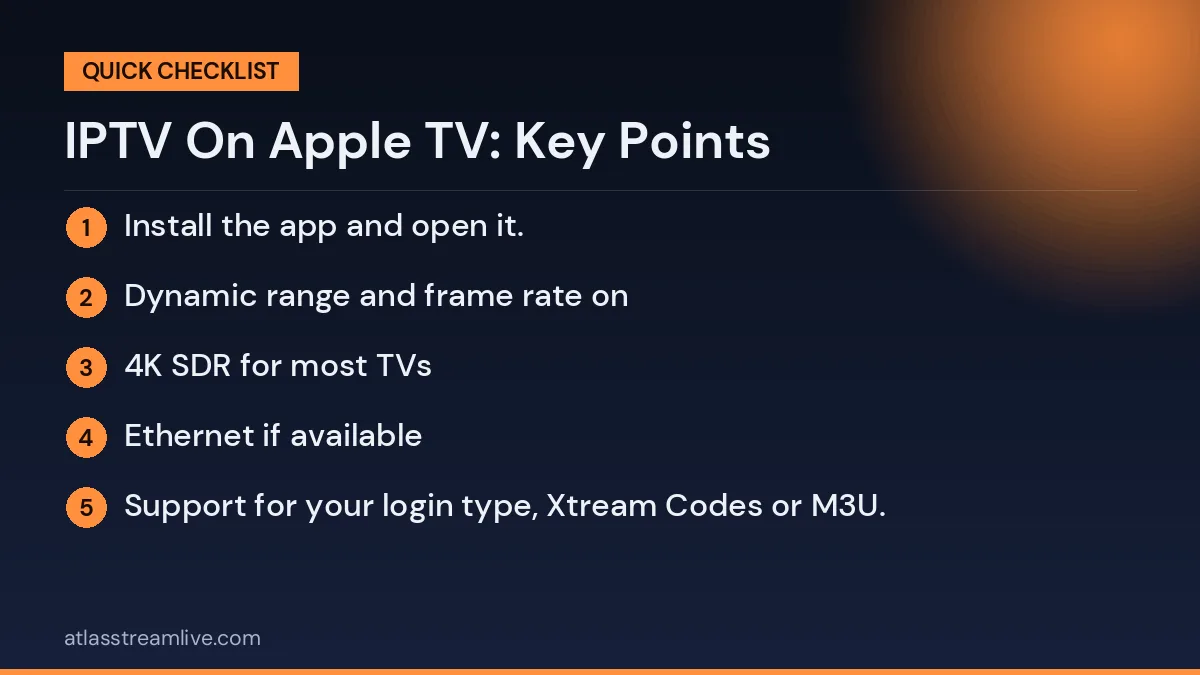
- Match Content: dynamic range and frame rate on
- Format: 4K SDR for most TVs
- Connection: Ethernet if available
- Automatic app updates: on
If something does not load, read IPTV Not Working? The UK Troubleshooting Guide before you assume the subscription is the problem. A typo in the server address or password is the most common cause.
Restart the Apple TV from Settings, System, Restart every few weeks to keep it running smoothly, especially after big software updates.
IPTV on Apple TV: Wi-Fi, Ethernet and Picture Quality
Streaming problems on an Apple TV are usually network problems, not app problems. Some Apple TV models have an Ethernet port and some are Wi-Fi only. If yours has a port and the router is within reach, use a cable for live sport. If you must use Wi-Fi, connect to the 5GHz network when you can and keep the Apple TV in range of the router. Our guide to internet speed for IPTV shows how to judge whether your line is the limit.
If the app you want is not available
If the player you were told about is missing, you still have options. A Firestick or an Android TV box can run IPTV apps without the App Store restriction, and many Smart TVs have their own app stores too. Some people also mirror from an iPhone using AirPlay, but that is a backup plan rather than a daily setup, because it depends on the phone staying connected and awake.
Apple TV Settings That Improve IPTV
A few built-in settings make IPTV on Apple TV look and feel much better. You will find them under Settings, Video and Audio.
| Setting | What it does | Recommended |
|---|---|---|
| Format | Sets output resolution and HDR mode | 4K SDR or 4K HDR depending on your TV |
| Match Dynamic Range | Switches HDR on only for HDR content | On |
| Match Frame Rate | Matches output to the content frame rate | On, helps UK 50fps broadcasts look smoother |
| Audio Format | Controls surround and Dolby Atmos output | Auto, or change if you have sound problems |
| Reduce Loud Sounds | Evens out sudden volume changes | Optional, useful at night |
Turning on Match Frame Rate is especially useful in the UK, where much live TV and sport is broadcast at 50 frames per second.
Choosing a Player for IPTV on Apple TV
Several IPTV players are available in the App Store for tvOS. When choosing one, look for:
- Support for your login type, Xtream Codes or M3U.
- A clear programme guide that loads quickly.
- Favourites and channel groups.
- Catch-up support if your service offers it.
- iCloud sync of playlists and favourites between Apple devices, offered by some players.
- Regular updates for the latest tvOS version.
Many players offer a free version or trial, so you can test before paying for premium features.
Entering Details Without Typing on the Remote
Typing a server address with the Siri Remote is slow. Some tvOS players let you add playlists from an iPhone, through iCloud sync or a short code shown on the TV. You can also use the keyboard on your iPhone: when a text field appears on the Apple TV, a notification usually appears on a nearby iPhone signed in to the same Apple account, letting you type with the phone keyboard.
Which Apple TV Model Is Best for IPTV?
| Model type | Strengths | Notes |
|---|---|---|
| Older Apple TV HD | Works for HD | No 4K, slower with large guides |
| Apple TV 4K (Wi-Fi only) | 4K, HDR, fast | No Ethernet port; needs strong Wi-Fi |
| Apple TV 4K (Wi-Fi + Ethernet) | 4K, HDR, wired connection | The best choice for live sport and 4K |
You can check model details and supported features on Apple Support. If you stream a lot of live sport or 4K, a model with an Ethernet port is worth choosing.
Wired or Wireless?
Apple TV has good Wi-Fi, but a wired connection is still more stable, especially during busy evenings. If your model has an Ethernet port and the router is close enough, use it. If not, place the Apple TV where it has a clear Wi-Fi path, not inside a closed cabinet, and connect to the 5 GHz band. In larger homes, a mesh Wi-Fi point near the TV helps.
Using AirPlay With IPTV
AirPlay lets you send video from an iPhone or iPad to the Apple TV. Some IPTV apps on iPhone support AirPlay, which can be handy for a quick viewing. For regular use, though, installing the player directly on the Apple TV is more reliable: it does not tie up your phone, it handles the remote better and it avoids an extra wireless step that can cause stutters.
Fixing Common Problems
The app will not log in
Check your details carefully, including capital letters and the full server address. Try entering them from your iPhone keyboard to avoid typing mistakes.
Picture looks too dark or washed out
Turn on Match Dynamic Range so HDR is only used for HDR content. Check HDR settings on the TV HDMI port.
Slight judder during sport
Turn on Match Frame Rate in Video and Audio settings.
No sound or stuttering sound
Change Audio Format from Auto to Stereo as a test, then try Dolby Digital if you use a soundbar.
Guide loads slowly
Limit the guide to favourites, reduce guide days and restart the Apple TV.
Getting the Most From the Siri Remote
- Swipe on the touch surface or clickpad to scroll quickly through long channel lists.
- Press and hold the TV button to open Control Centre, where you can switch users or put the Apple TV to sleep.
- Use Siri to open apps by name, such as open BBC iPlayer.
- Double-press the TV button to see recently used apps and switch between them.
- Use the iPhone Remote in Control Centre on your iPhone if the Siri Remote is lost or flat.
Using Official UK Apps Alongside IPTV
Apple TV supports BBC iPlayer, ITVX, Channel 4, My5 and many other UK apps from the App Store. Installing them next to your IPTV player gives you reliable catch up and box sets. Arrange the home screen so your most-used apps sit in the top row for quick access. Remember that a TV Licence is needed to watch live TV on any channel or to use BBC iPlayer.
Multiple Users and Profiles
Apple TV supports multiple users, each with their own Apple account, recommendations and app data. If your IPTV player supports separate profiles too, set one up for each person so favourites and watch history stay personal. This is especially helpful in family homes where children and adults watch very different things.
Keeping Apple TV Running Smoothly
- Install tvOS updates when they appear, under Settings, System, Software Updates.
- Restart the Apple TV once a week from Settings, System, Restart.
- Remove apps you no longer use to free storage.
- Keep the player app updated from the App Store.
- Give the Apple TV space to stay cool rather than enclosing it.
Is Apple TV Worth It for IPTV?
Apple TV is more expensive than many streaming sticks, but it is fast, receives updates for many years, handles 4K and HDR very well and offers useful features such as Match Frame Rate. For households that already use iPhones and iPads, the integration is a real bonus. For budget-focused viewers, a cheaper stick may be enough, but Apple TV is one of the smoothest overall experiences available.
Setting Up for Family Members
For less confident users, put the IPTV player and their favourite official apps in the top row of the home screen. Create a short favourites list with their usual channels. Show them how to press the TV button to return home and how to use Siri to open an app by name. Many older viewers find the simple Siri Remote and clear tvOS menus easier than other streaming devices once the basics are set up.
Sound Options on Apple TV
Apple TV supports Dolby Atmos and surround sound when connected to a compatible soundbar or receiver. Connect the Apple TV to the TV, and the soundbar to the TV using HDMI ARC or eARC. Then set Audio Format to Auto. If you use AirPods or Bluetooth headphones, you can connect them directly to the Apple TV for private late-night viewing, which is handy in shared homes. If speech is hard to hear, try the Reduce Loud Sounds option or the dialogue setting on your soundbar.
Screen Saver and Sleep Settings
Apple TV shows a screen saver after a period of inactivity and goes to sleep after a set time. If you pause a live channel and come back later, the player may need to reconnect. You can change the sleep timer under Settings, General, Sleep After. Setting a longer time is useful during long sporting events where you might pause briefly. Remember to put the Apple TV to sleep at the end of the evening rather than leaving a stream paused, so it does not use a connection on your plan unnecessarily.
Travelling With an Apple TV
Apple TV is small and easy to pack. If you take it on holiday within the UK, connect it to the hotel or holiday home TV and Wi-Fi, sign in, and your apps and settings are ready. Hotel Wi-Fi can be slow or require a login page, which Apple TV may not support, so check before relying on it. A phone or tablet can be a simpler option for watching away from home.
You can see the devices we support on the compatible devices page.
Test it properly before you pay
The safest way to find out whether your Apple TV setup works is to try it with your own equipment. AtlasStream Live offers a free 24-hour trial with no card needed, so you can set up the app you plan to use, check the guide and test a live channel in the evening when the network is busiest. If you are not sure which app to use, message us on WhatsApp before you start and we will point you the right way. You can start here: free 24-hour trial.
IPTV on Apple TV: Frequently Asked Questions
Do I need to jailbreak an Apple TV?
No. IPTV players are available in the official App Store. Jailbreaking is unnecessary and can make the device less secure.
Can I use the same login on my iPhone and Apple TV?
Yes, as long as your plan allows enough simultaneous connections if both play at the same time.
Does Apple TV support 4K IPTV?
Apple TV 4K models do, if your TV, connection and the content support 4K.
Why does the picture judder?
Turn on Match Frame Rate in Video and Audio settings.
Can I record programmes?
Apple TV has no built-in recording, and most IPTV players on tvOS do not record. Use catch up instead if your service offers it.
What internet speed do I need?
Around 10 Mbps for HD and 25 Mbps or more for 4K is a comfortable guide. Test on a nearby device with a tool such as Speedtest.
The Short Version
For IPTV on Apple TV, install a tvOS player from the App Store, enter your details using your iPhone keyboard, and turn on Match Frame Rate and Match Dynamic Range. Use Ethernet if your model has it, keep tvOS updated and set up favourites on day one. With those steps, Apple TV gives one of the smoothest IPTV experiences available on any device.