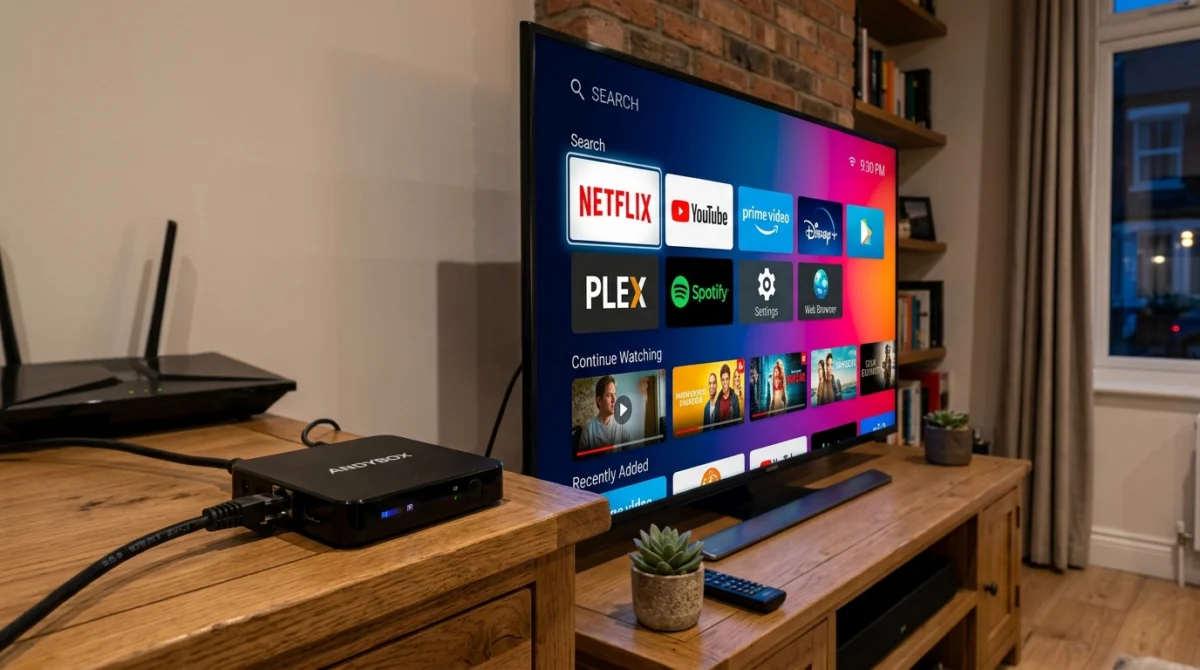
An Android TV box is one of the most flexible ways to watch IPTV in the UK, and it often gets less attention than the Firestick. It usually offers more storage and more processing power, and it lets you install apps with fewer restrictions. Not every box suits IPTV equally, though, and the best box in the world will not fix a weak service. This guide covers both: what to look for in the hardware, which apps people use, and what to check in a service.
We do not rank specific boxes here, because models change quickly and quality varies a lot between brands. Instead, this guide gives you the checks that apply to any box you are considering.

Want to test it on your own TV first? Try AtlasStream Live free for 24 hours on your Firestick, Smart TV or phone. No payment needed.
Why People Choose an Android TV Box for IPTV
Amazon’s Fire OS is built on Android, but it is designed around Amazon’s own content and app store. A box running Android TV or Google TV is more open: you can usually install the IPTV app you want and configure it your own way.
Hardware is the second reason. A mid-range box with enough memory and a capable chip copes with heavy streams, an EPG loading in the background and several apps open at once better than a basic streaming stick. Storage helps too. A Fire TV Stick Lite has limited space, while Android boxes often ship with 32GB or 64GB, so you can keep an IPTV app, a catch-up app, a media player and a VPN client installed together.
What to Look For in an Android TV Box for IPTV
Spec sheets can be misleading, so focus on what changes the viewing experience.
Memory: 2GB is the minimum and can feel sluggish when you switch between apps. 4GB is a comfortable target for most people.
Processor: if you want 4K, check that the chip decodes HEVC properly. Some cheap boxes claim 4K support but drop frames in practice. Look for independent reviews that test real 4K playback rather than relying on the box listing.
Certification: if you want the same box for Netflix and other protected services, look for Widevine L1. Boxes that only support L3 often limit those services to low resolution. This does not affect IPTV streams directly, but it matters if you want one box to do everything. Also check whether the box is officially certified for the Google Play Store, because some cheap boxes ship with unofficial app stores.
Ethernet: most IPTV problems come down to the network rather than the service. A box with a wired Ethernet port removes the Wi-Fi variables that cause occasional buffering. If your router is in another room, a cable or a good mesh system makes a real difference.
Popular IPTV Apps on Android TV
With an Android box you can usually install IPTV player apps directly from the store. Three that UK users commonly mention are IPTV Smarters Pro, TiviMate and GSE Smart IPTV. Smarters has a simple interface and supports both M3U playlists and Xtream Codes logins. TiviMate has a traditional TV-guide layout that many people prefer for large channel lists, and some of its features need a paid upgrade. GSE Smart IPTV is sometimes used as a backup when another app has trouble with a particular stream format. Check the current price and features of any app before you buy it. Our guide to IPTV players goes through the options in more detail.
Remember that an IPTV player app only plays what your provider gives you. Ask your provider which app it recommends and how its login details work.
What to Check in an IPTV Service for Your Box
The device is only half the equation. A good box with a weak service still gives a frustrating experience. Before you subscribe, check these points.
Setting Up Your Box for the First Time
When your Android TV box for IPTV arrives, set it up carefully. Connect it by Ethernet if possible, sign in with a Google account, and let all system updates finish before installing anything else. Install your IPTV player from the Google Play Store, enter your login details and set up favourites. In the display settings, choose the correct resolution and frame rate for your TV, and turn on match frame rate if available for smoother sport.
Reliability at busy times: marketing terms like anti-freeze do not tell you much. Ask what they actually mean, and test the service during a busy evening or a live event. Our guide on what to check in a free IPTV trial explains how.
The channels you actually watch: do not rely on channel counts. Check the specific channels you care about, and check that they hold their quality. Be careful with any provider that claims to carry specific licensed channels without being able to explain its rights. Our guide to IPTV safety and legality in the UK covers the risks.

Catch-up and replay: if you want it, ask whether the service supports it and test it on a few channels during your trial rather than assuming a menu option works.
Connections: check how many devices a plan allows at the same time before you commit, and what it costs to add more.
Setting Up Your Android TV Box for IPTV
A lot of setups work but are not optimised, and people then blame the service or the hardware when the problem is the configuration. A few changes make a meaningful difference.
Use a wired connection if you can. If you cannot, use the 5GHz Wi-Fi band and keep the box as close to the router as practical.
Set the display output to match your TV. Some boxes default to a lower resolution or refresh rate than the TV supports. Check the display settings and choose what your TV actually handles.
If your app has a buffer setting, a slightly larger buffer can smooth out brief connection dips at the cost of a short delay when changing channels.
Keep your IPTV app updated. Providers sometimes change stream formats or login methods, and an outdated app is a common cause of channels that suddenly stop working. If something fails, our IPTV troubleshooting guide is a good first stop. Prefer a Firestick? See our Firestick setup guide, or the guide to MAG box setup.
Android Box or Firestick?
If your Firestick works for you, there is no urgent reason to switch. An Android box is worth considering if you run out of storage, an app crashes or freezes, you want better 4K performance, or you want more freedom over which apps you install. Prices vary widely by brand and specification, so compare current prices and read independent reviews before you buy.
Android TV Box for IPTV: Spec Checklist at a Glance
If you are comparing boxes in a shop or online, this table shows what to look for in an Android TV box for IPTV and what to avoid.
| Feature | Look for | Avoid |
|---|---|---|
| Memory (RAM) | 3 to 4 GB | 1 GB boxes that freeze with big playlists |
| Storage | 32 GB or more | 8 GB, which fills up quickly with updates and cache |
| Video decoding | HEVC (H.265) and VP9 hardware support | Boxes that only list H.264 |
| Network | Gigabit Ethernet and dual-band Wi-Fi | 2.4 GHz-only Wi-Fi with no Ethernet port |
| Software | Official Android TV or Google TV | Unbranded firmware that never gets updates |
| Certification | Google certified, Widevine L1 | Uncertified boxes that limit streaming apps to SD |
Google keeps a list of certified Android TV partners and devices on its official Android TV site, which is a quick way to check whether a box is genuine.
Android TV Box for IPTV: Wired vs Wireless
The single biggest upgrade you can make is often not a better box but a better connection. Live channels need a steady stream of data, and Wi-Fi behind a TV is often weak.
Use Ethernet where you can
Most Android boxes have an Ethernet port. A cable from the router gives the most stable picture for live sport. If the router is in another room, powerline adapters that send the connection through your home electrics are a simple fix.
If you must use Wi-Fi
Connect to the 5 GHz band when the box is in the same room as the router or one room away. Use 2.4 GHz only if the router is far away, as it reaches further but carries less data. A mesh Wi-Fi system helps in larger homes.
Keeping Your Android TV Box Fast
Android boxes slow down over time if they are not looked after. A few habits keep them quick.
- Clear the IPTV app cache every few weeks under Settings, Apps.
- Uninstall apps you never use, especially ones that run in the background.
- Restart the box once a week rather than leaving it on standby for months.
- Install system updates when the manufacturer releases them.
- Keep it ventilated. A box shut in a cabinet gets hot and throttles its speed.
Android TV Box for IPTV: Common Questions
Is an Android TV box better than a Firestick?
Not always. A good Android box offers more storage, Ethernet and app freedom. A Firestick is cheaper, smaller and simpler. If your Firestick works well, there is no need to switch.
Do I need a Google account?
For a certified Android TV or Google TV box, yes, to use the Play Store. You can use an existing Gmail account.
Can I use one box on two TVs?
Only by moving it between them. Each TV needs its own device if you want to watch on both at once, plus a plan with enough connections.
Why does my box show “storage full”?
Cache from streaming apps builds up. Clear the cache of your IPTV app and remove unused apps to free space.
Is a cheap unbranded box worth it?
Usually not. Unbranded boxes often lack updates, overstate their specifications and may come with unwanted software pre-installed. A certified box from a known brand is a safer long-term buy.
Android TV vs Google TV vs AOSP: What the Labels Mean
Box listings use several names for the software, and the difference matters more than most buyers realise.
Android TV
The official TV version of Android, licensed by Google. You get the Play Store, regular security updates from the manufacturer and support for mainstream streaming apps. This is a safe choice for an Android TV box for IPTV.
Google TV
A newer interface built on top of Android TV. It adds personalised recommendations and a cleaner home screen. IPTV player apps work the same way as on Android TV.
AOSP or “Android” without TV
Many cheap boxes run the open-source version of Android designed for phones, not TVs. They often lack the Play Store, need sideloaded apps, are awkward to use with a remote and rarely receive security updates. These boxes are the most common source of problems.
How Much Should You Spend?
You do not need the most expensive box on the market, but the very cheapest options are usually a false economy. Think about the price in three rough bands.
| Budget | What you usually get |
|---|---|
| Under about £40 | Basic specs, often uncertified, fine for a spare TV but can struggle with large playlists |
| Around £40 to £90 | The sweet spot for most homes: certified software, enough memory, 4K and Ethernet |
| Above about £90 | Faster processors and premium build, worth it for heavy use or gaming |
Prices change often, so treat these as a guide rather than fixed figures. Whatever you pay, check the specification table above before you buy.
Setting Up an Android TV Box for Older Relatives
An Android TV box can be very easy to use once it is set up thoughtfully. Install only the apps your relative needs, put the IPTV player first on the home screen, and set up a short favourites list with their usual channels. Turn off auto-play trailers on the home screen if they cause confusion, and label the remote buttons they need most with a small sticker. Ten minutes of preparation makes the box feel as simple as a traditional set-top box.
Troubleshooting Your Android TV Box for IPTV
The picture stutters on live channels
Check the connection first. Run a speed test on the box itself using a free speed test app, then try the same channel on a phone on the same network. If both stutter, the problem is the broadband or Wi-Fi rather than the box.
The app crashes or closes
Clear the app cache and data, then log in again. If that does not help, uninstall and reinstall the latest version from the Play Store.
The remote does not respond
Replace the batteries and re-pair the remote from the settings menu. Many boxes also work with a free phone remote app, which is handy while you sort the problem out.
Sound is out of sync with the picture
Look for an audio delay or lip-sync option in the IPTV app or the box sound settings. Turning off surround passthrough can also fix sync problems on some TVs and soundbars.
Most issues come down to the network, cache or settings rather than a faulty box, so work through these checks before you think about replacing anything.
The box gets very hot
Move it out of closed cabinets and away from the back of the TV, where heat builds up. A box that overheats slows down to protect itself, which shows up as stuttering video and slow menus. A small stand that lifts it off the shelf improves airflow.
Channels load slowly after the box wakes up
Some boxes drop the network connection in deep standby. Look for a setting that keeps Wi-Fi or Ethernet active during sleep, or simply restart the IPTV app after waking the box.
With the right box, a solid connection and a little routine care, an Android TV box for IPTV gives you one of the most flexible and reliable ways to watch live TV in the UK.
Choose carefully once, set it up properly, and you will rarely need to think about the box again. That is exactly how good TV hardware should feel.
Trying AtlasStream Live on Android
AtlasStream Live works on Android boxes and phones as well as Firestick and Fire TV, iPhone and iPad, Apple TV and Smart TVs. We offer a free 24-hour trial with no credit card needed, so you can check it on your own box before paying. Request it on the free trial page or message us on WhatsApp and tell us which box and app you plan to use.
Final Checks Before You Buy an Android TV Box for IPTV
- It runs official Android TV or Google TV.
- It has at least 3 GB of RAM and 32 GB of storage.
- It decodes HEVC in hardware if you want 4K.
- It has an Ethernet port, or you have a plan for strong Wi-Fi.
- The manufacturer has a track record of updates.
Tick all five and you will have a box that handles IPTV smoothly for years, not months.
Want to test it on your own box? Request your free 24-hour trial.
Already sure? See plans and subscribe → · from £15, no contract.