Can you watch IPTV on a computer?
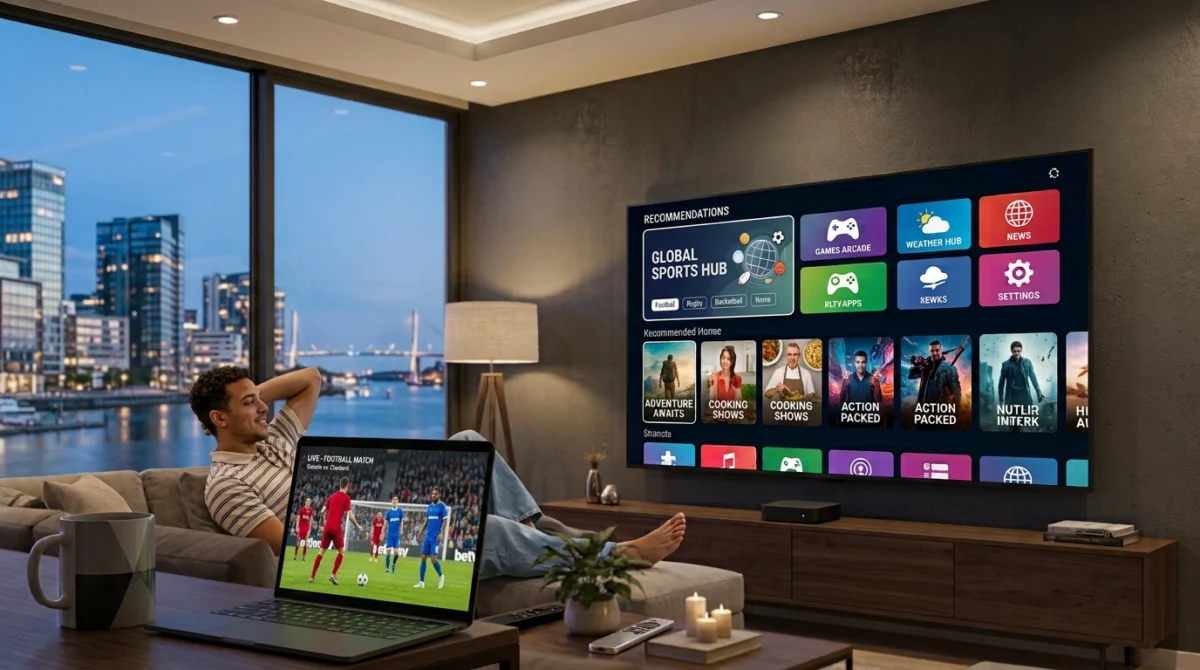
Yes. A computer can be one of the easiest ways to try IPTV, because you do not need to buy extra equipment. You use a media player or an IPTV app, enter the details from your provider, and the channels appear. It is also a good way to test a service before you set it up on a TV.
The Main Options to Watch IPTV on a PC or Laptop
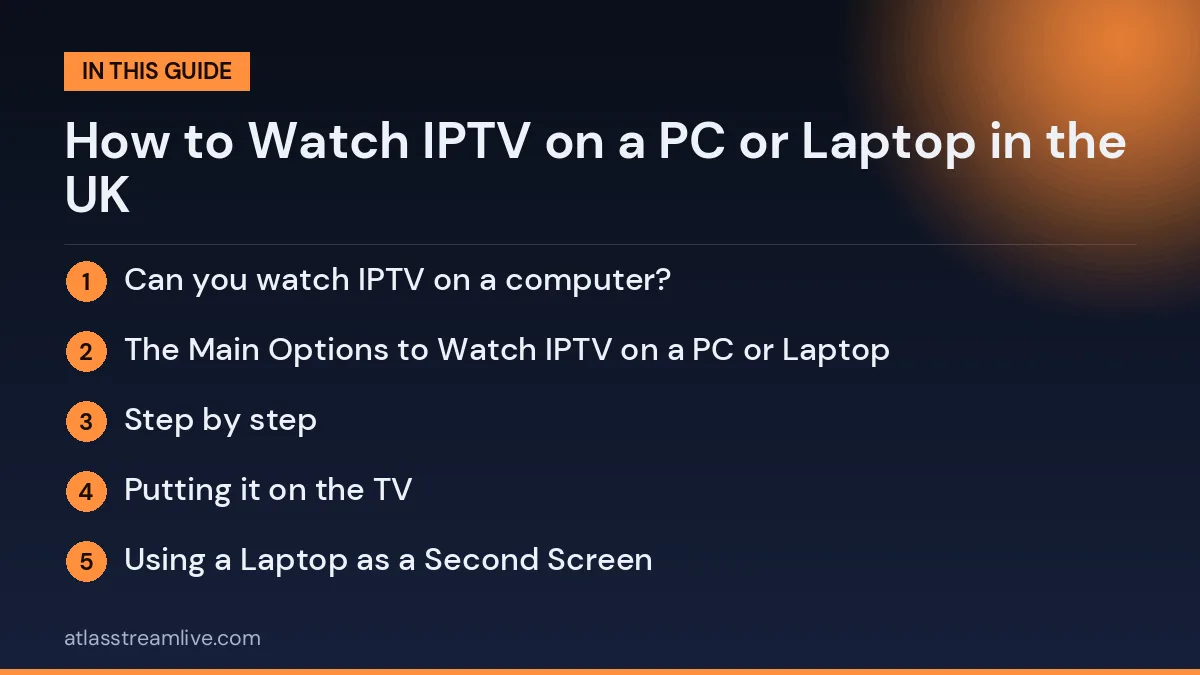
It is easy to watch IPTV on a PC or laptop, whether you want a quick second screen or a full setup with a guide and favourites.
- A desktop app or media player. Some well-known media players can open an M3U playlist, and some apps are made specially for IPTV and offer a channel list and TV guide. Check the player’s own help pages to see which formats it supports. Our guide to M3U vs Xtream Codes explains the formats.
- A web player. Some services offer a login on a web page, so nothing needs to be installed. Ask your provider if one is available.
- An app from the Microsoft Store or Mac App Store. This route is simple and keeps things tidy, because the store checks the apps it lists.
Want to test it on your own TV first? Try AtlasStream Live free for 24 hours on your Firestick, Smart TV or phone. No payment needed.
Step by step
- Choose a player that supports the type of login your provider gave you.
- Download it from the official site of the player or from the store, never from a link in a message or an unknown site.
- Open the player and choose the option to add a playlist or log in. Paste the details exactly as given.
- Wait for the channel list to load, then check that the guide fills in.
- Test a live channel and a film. If something fails, read IPTV Not Working? The UK Troubleshooting Guide.
Putting it on the TV
If you want a bigger picture, connect the laptop to the TV with an HDMI cable, or use a wireless display feature if both devices support it. It works, but for everyday viewing a streaming stick or a Smart TV app is more comfortable, because you do not have to leave a computer next to the TV. See Firestick or Android TV box if you are thinking of moving to a dedicated device.
Using a Laptop as a Second Screen
Many people watch IPTV on a PC or laptop while the main TV shows something else. This is useful during busy sports weekends, when two matches are on at the same time, or when someone wants to watch in another room. Check that your plan has enough connections, because the laptop counts as an extra screen.
For the best experience, connect the laptop to power, as streaming uses a lot of battery. Use headphones if others nearby are watching something different. If the laptop has an HDMI port, you can also connect it to a second TV or monitor for a bigger picture. Close other browser tabs and heavy programs while streaming to keep playback smooth.
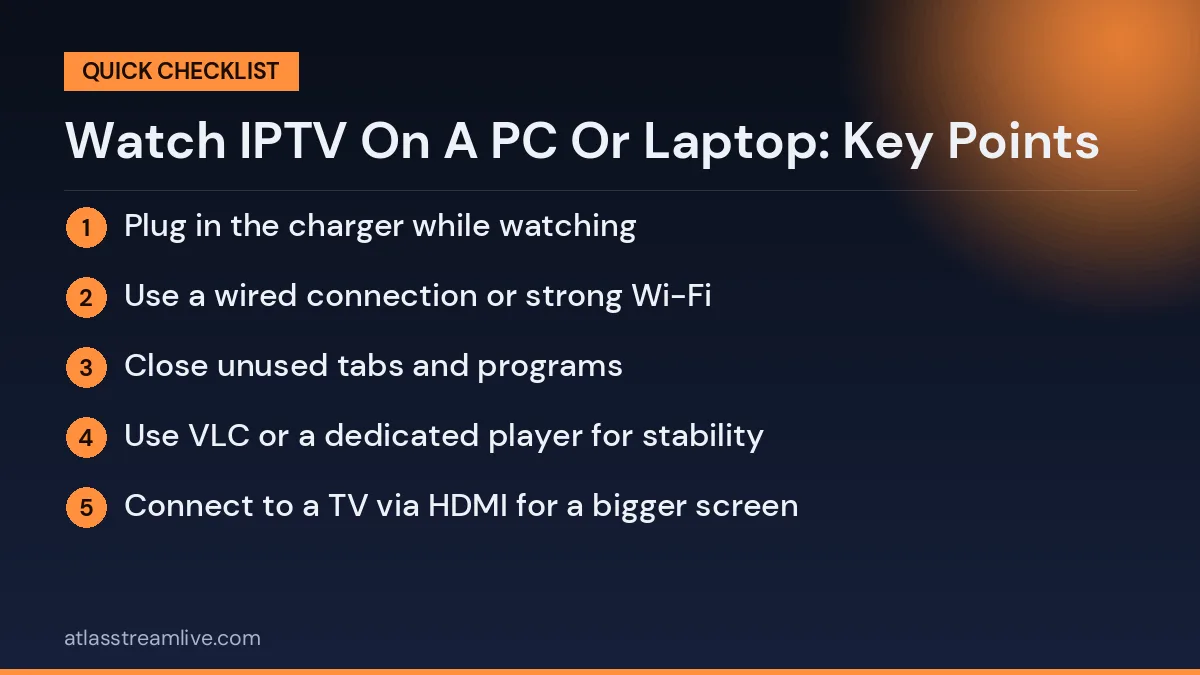
Laptop streaming tips
- Plug in the charger while watching
- Use a wired connection or strong Wi-Fi
- Close unused tabs and programs
- Use VLC or a dedicated player for stability
- Connect to a TV via HDMI for a bigger screen
With these simple steps, a laptop becomes a flexible extra screen that fits easily into your home setup.
Choosing the Right Player on a Computer
On a PC or laptop, VLC is a popular free choice because it opens M3U playlists and handles most video formats. Some services also offer dedicated Windows or Mac apps with a guide and favourites, which can be easier to use. Browser-based players are convenient but may use more battery and memory. Try one or two options and choose the one that feels smoothest on your computer.
Watching on a Work Laptop
If you use a work laptop, check your employer’s rules before installing streaming apps. Many companies block or restrict software that is not approved, and some monitor network activity. It is usually safer to use a personal device for streaming. If you do watch on a shared or work computer, avoid saving your IPTV login details in the browser, and sign out when you finish so others cannot access your account.
Keep the player updated so it supports the latest video formats and security fixes.
Keep your computer safe
Be careful with free software. Only install players from the developer’s official site or an official store, read reviews, keep your antivirus and system updates on, and do not run files sent to you by strangers. If a site tells you that you must disable your security software, leave. Our account security guide has more habits to follow.
Get the Best Picture When You Watch IPTV on a PC or Laptop
A wired connection is more stable than Wi-Fi, especially for live sport. If you must use Wi-Fi, sit within range of the router. Close heavy programmes and downloads while you watch. Our guide to Wi-Fi or Ethernet for IPTV shows how to improve the connection.
Try it on your own computer
The quickest check is to test the service on the computer you already have. AtlasStream Live offers a free 24-hour trial with no card needed, so you can set up a player, check the guide and watch a live channel in the evening before deciding anything. If you are stuck, message us on WhatsApp. Start here: free 24-hour trial.
Ways to Watch IPTV on a PC or Laptop Compared
There are several ways to watch IPTV on a PC or laptop. Each suits a different kind of viewer.
| Option | Best for | Notes |
|---|---|---|
| Dedicated IPTV player app | Regular viewing with guide and favourites | Available for Windows and macOS |
| General media player (such as VLC) | Quick viewing of an M3U playlist | Simple, but limited guide and catch-up support |
| Web player in a browser | No installation needed | Only if your provider offers one |
| Laptop connected to a TV by HDMI | Big-screen viewing without a streaming stick | Good for occasional use |
Using VLC With an M3U Playlist
- Download VLC from the official VideoLAN website.
- Open VLC and choose Media, then Open Network Stream.
- Paste your M3U playlist link and press Play.
- Open the playlist view to see and choose channels.
VLC is free and reliable, but it does not show a proper programme guide or catch up. For regular viewing, a dedicated IPTV player gives a much better experience.
Using a Dedicated Player App
Dedicated players for Windows and macOS support Xtream-style logins and M3U playlists, with a programme guide, favourites and on-demand sections. Install from the official Microsoft Store, the Mac App Store or the developer’s official website. Avoid downloading players from unknown file-sharing sites, which may contain malware.
Getting the Best Picture on a Computer
- Use Ethernet if your computer has a port, or connect to 5 GHz Wi-Fi.
- Turn on hardware acceleration in the player settings to reduce stuttering and save battery.
- Close other heavy programs, such as games or large downloads.
- Set power mode to best performance on laptops while plugged in.
- Use full screen for the smoothest playback.
- Keep graphics drivers updated on Windows computers.
Putting Your Laptop on the TV
With an HDMI cable
Most laptops have an HDMI port, or a USB-C port that can output video with an adapter. Connect the laptop to the TV, switch the TV to that HDMI input, and set the laptop display to duplicate or extend. Play the channel full screen on the TV. Remember to keep the laptop plugged into power, as video output drains the battery quickly.
Wirelessly
Some laptops can cast a browser tab or the whole screen to a Google TV, Chromecast or a Smart TV that supports screen mirroring. Windows laptops can often connect to Miracast-compatible TVs, and Macs can use AirPlay with Apple TV or AirPlay-compatible TVs. Wireless mirroring is convenient but less stable than a cable, and may lag slightly.
Keyboard Shortcuts Save Time
Many players support keyboard shortcuts, such as the space bar to pause, F for full screen, arrow keys to change channel or seek, and M to mute. Check the player settings or help page for a list. Shortcuts make watching on a computer quicker than using a mouse for every action.
Laptop Battery and Heat
Streaming video for hours uses a lot of power and generates heat. For long sessions, keep the laptop plugged in, place it on a hard surface rather than a bed or cushion, and close other demanding programs. Hardware acceleration in the player reduces the load on the processor, which helps both battery life and temperature.
Keeping Your Computer Safe
- Download players only from official stores or developer websites.
- Keep your operating system and antivirus up to date.
- Avoid websites that offer free premium channels, which often carry malware and pop-up scams.
- Never enter card details on unfamiliar streaming sites.
- Use a unique password for your IPTV account.
The National Cyber Security Centre offers clear advice on keeping computers secure.
Fixing Common Problems on a Computer
The stream stutters
Turn on hardware acceleration, close other programs, connect by Ethernet or move closer to the router, and lower the stream quality if needed.
No sound
Check the volume in the player and in the computer sound settings, and make sure the right output device is selected, especially if headphones or a TV are connected.
Black screen with sound
Switch the video output or decoder setting in the player, or update your graphics drivers.
The player will not log in
Copy and paste your details from your welcome email to avoid typing mistakes, and confirm you chose the right login type.
Firewall or antivirus warning
Allow the player through your firewall only if you installed it from an official source. Be cautious if security software flags a player downloaded from an unknown site.
The laptop goes to sleep
Adjust power settings so the screen and computer stay on while plugged in, or use a player that prevents sleep during playback.
Setting Up a Comfortable Viewing Space
Watching on a computer is more enjoyable with a little setup. Raise the laptop to eye level with a stand or a pile of books, use external speakers or headphones for better sound, and dim bright lights behind the screen to reduce glare. For long sports events or films, a wireless mouse or keyboard lets you control playback from a comfortable distance. If you watch in bed, a lap tray keeps the laptop stable and allows air to flow underneath.
Multi-Screen Viewing on a Computer
One advantage of a computer is screen space. Some players let you watch one channel while browsing the guide, or open a small picture-in-picture window while you work. Sport fans sometimes keep a match playing in a corner of the screen while doing something else. Remember that each additional stream usually counts as another connection on your plan and uses more bandwidth.
Using Official UK Apps on a Computer
BBC iPlayer, ITVX, Channel 4 and My5 all work in a web browser on Windows and Mac computers. They are a reliable way to watch UK catch up and box sets alongside your IPTV player. A TV Licence is required to watch live TV on any channel and to use BBC iPlayer, whatever device you use.
Windows vs Mac for IPTV
Both platforms work well. On Windows, you will find a wide choice of players in the Microsoft Store and from developer websites, and most laptops include an HDMI port. On a Mac, players are available in the Mac App Store, and AirPlay makes it easy to send video to an Apple TV. Chromebooks can also run many Android IPTV apps from the Play Store, which is handy for students and families who use them for school. Whichever you use, choose a player designed for your system and keep it updated.
Using a Computer as a Home Media Hub
Some households connect a small computer permanently to the living room TV, using it for IPTV, web browsing, video calls and official catch-up apps in one place. A wireless keyboard with a built-in touchpad makes this setup comfortable from the sofa. It is more flexible than a streaming stick but less simple, so it suits people who are comfortable with computers rather than those who want a one-remote experience.
Students and Home Workers
For students in halls or people working from home, a laptop is often the main screen. Keep work and viewing separate where you can: close the player during video calls to free up bandwidth, and avoid streaming on work computers if your employer policy does not allow it. On shared university or office networks, check the rules on streaming, as some networks limit video traffic or require devices to be registered.
Keeping Your Setup Tidy
Once everything works, save your login details in a password manager, create favourites in the player and note which settings gave the best picture. If you change computers later, you can recreate the setup in minutes instead of starting from scratch.
Internet Speed for Computer Viewing
Computers use the same amount of data as any other device for the same quality. As a rough guide, around 5 Mbps is enough for SD, 10 Mbps for HD and 25 Mbps or more for 4K on a 4K screen. Test your real speed on the computer itself with a tool such as Speedtest, ideally in the evening when networks are busiest. If the laptop is far from the router, moving closer, switching to 5 GHz Wi-Fi or plugging in an Ethernet cable usually gives the biggest improvement. Laptops without an Ethernet port can use an inexpensive USB-to-Ethernet adapter, which is a simple way to get a stable connection for live sport or long films.
Watch IPTV on a PC or Laptop: Frequently Asked Questions
Is a computer good for regular TV viewing?
It works well for a second screen, a home office or a student room. For a living room, a streaming stick is usually more convenient.
Do I need a powerful computer?
No. Most computers from the last several years handle HD easily. 4K needs a newer machine and a 4K screen.
Does watching on a laptop count as a connection?
Yes. Each screen playing at the same time counts towards your plan limit.
Can I use the same login as my TV?
Yes, if your plan has enough connections for both at once.
Is it safe to use web players?
Official web players from your provider are fine. Be wary of random websites offering free channels.
The Short Version
To watch IPTV on a PC or laptop, install a dedicated player from an official source for the best experience, or use VLC for quick viewing of an M3U playlist. Use Ethernet or 5 GHz Wi-Fi, turn on hardware acceleration, keep the computer plugged in and updated, and connect it to a TV by HDMI when you want a bigger screen. With these steps, a computer becomes a flexible and reliable way to watch.